Read Skipped and Refused Bot Orders in Antei AI
Learn how to interpret your Antei deployment logs to identify why orders were skipped, resized, or refused on Hyperliquid and how to resolve them.

On this page
Quick Answer
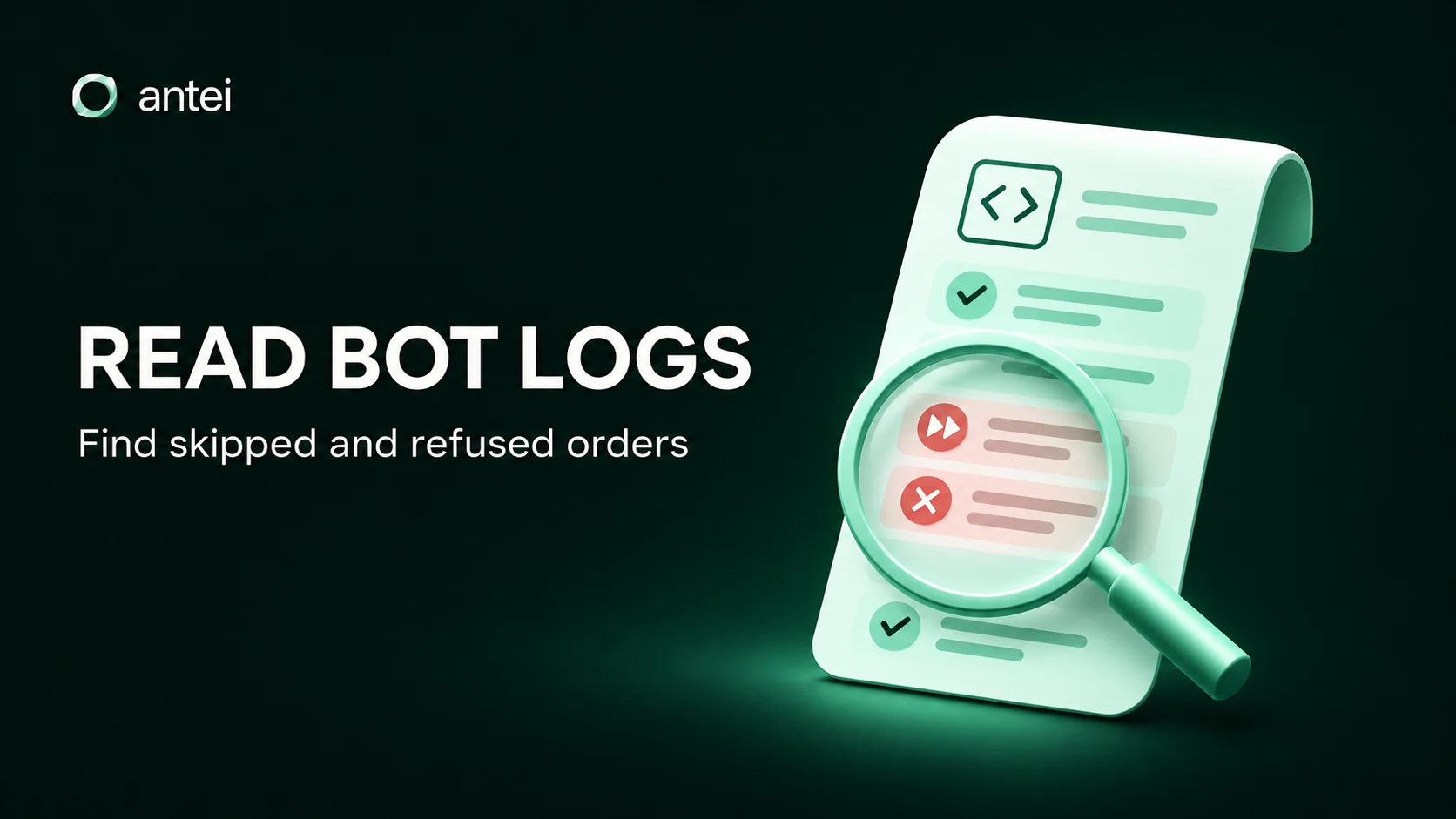
To find out why a Hyperliquid bot order was skipped or refused in Antei AI, open the deployment, select Runtime logs, and look for a row titled Order skipped, Order refused, Order adjusted, or Order expired. Each row explains what happened, why it happened, and what to change. Expand the row to view the full message and event data. Use Trade Logs separately to confirm orders that actually produced fills.
Key Takeaways
Runtime logs explain decisions: fills, skipped orders, refused orders, size adjustments, warnings, and deployment status changes.
Trade Logs record trading activity: filled quantity, average price, fees, execution mode, identifier, and who placed the trade.
A skipped order was stopped before execution; a refused order reached an execution check but was not placed.
Read the numbers in the message before changing the strategy. The log may identify a minimum order, size step, position limit, stale signal, or paused-entry condition.
Paper and live activity are labelled separately, so a simulated fill should never be mistaken for a real order.
Where to Find Runtime Logs in Antei AI
Open Deployments from the Run section of the Antei console.
Select the relevant deployment.
Open the Runtime logs tab.
Use All, Errors, Warnings, or Info to narrow the list.
Expand a row to see its full message and event data.
The deployment page also shows execution truth. Check whether the requested and effective modes are paper or live, whether real orders are enabled, and whether the worker is running. This prevents a common mistake: investigating a paper fill as if it were a live Hyperliquid order.
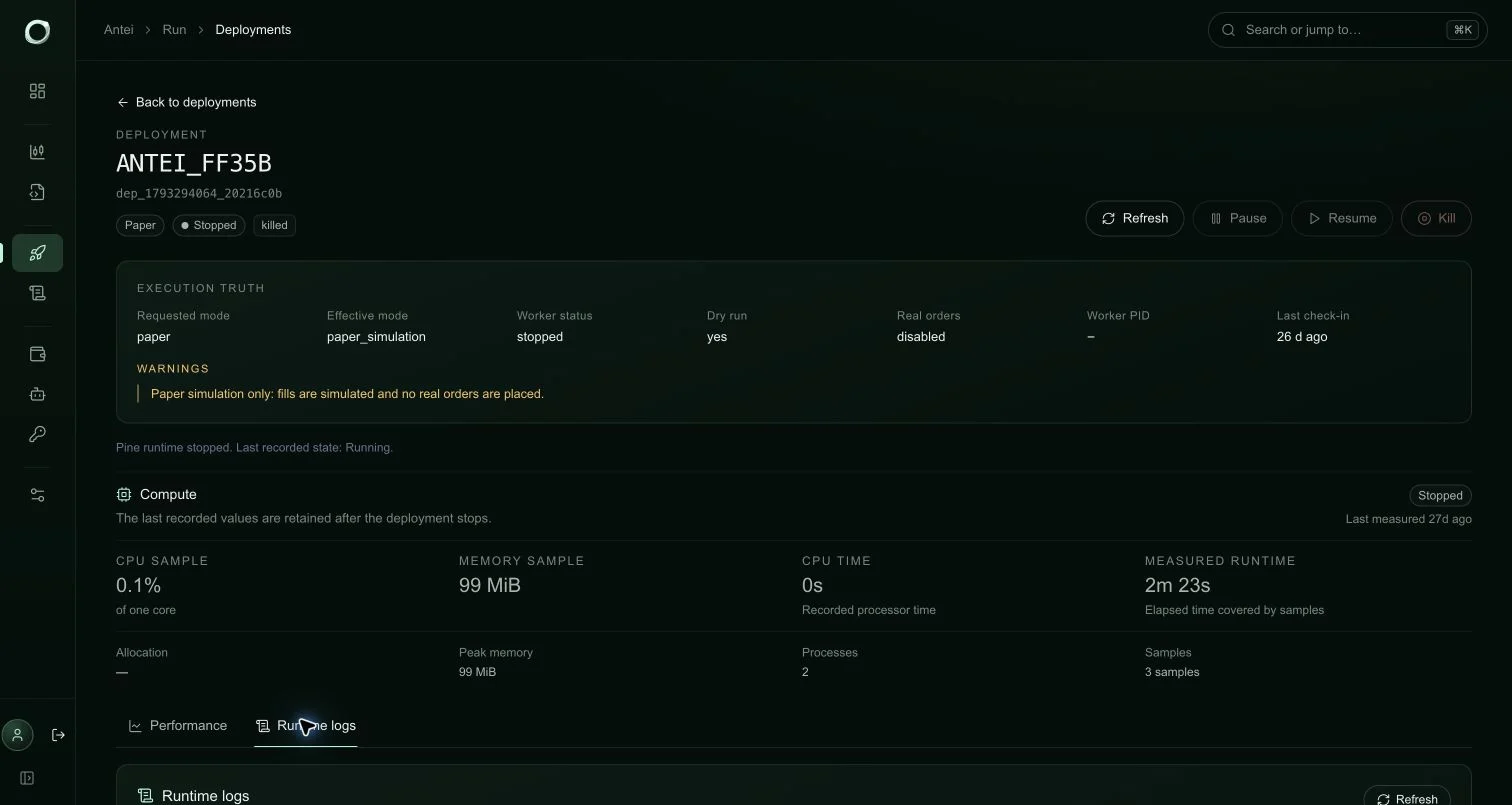
How to Read a Skipped Order
A skipped order did not proceed to execution. Antei writes a separate Runtime log row for each order it drops or changes, rather than showing one generic warning for the entire session.
The message is designed to include the requested side and size, the measured value that caused the skip, and the corrective action when one is available. Common examples include:
Below the minimum order: the requested quantity or notional is too small. Increase the strategy's order size or available capital instead of repeatedly retrying the same request.
Position limit reached: the new position would exceed the deployment's configured capital or leverage envelope. Reduce the requested size or review the deployment limits.
Entries paused: the deployment is waiting for attention and will not admit a new entry until that condition is resolved.
Signal became stale: the order could not be sent within the permitted time after the bar closed, so Antei did not send a late trade.
Do not assume that every missing trade is an exchange rejection. A skipped order can be stopped by strategy sizing, deployment controls, or stale-data protection before it reaches Hyperliquid.
How to Read a Refused or Adjusted Order
A refused order was not placed after an execution or Hyperliquid validation check. Read the exact message instead of guessing from the timestamp. It may identify a minimum-value rule, invalid price, unavailable margin, or another concrete reason.
An adjusted order is different: Antei may send a smaller quantity after applying the venue's size step or a configured limit. The row states both the requested and applied quantities. If only part of a price-limited order fills, the log identifies the unfilled remainder so the strategy can reconcile it before submitting another order.
Confirm Executed Trades in Trade Logs
Open Trade Logs from the Run section after reviewing the Runtime log. The page shows trades from AI tools, strategies, and manual Hyperliquid activity. Filter by All trades, From AI, Strategies, or Manual; then narrow the results by live or paper execution and by coin.
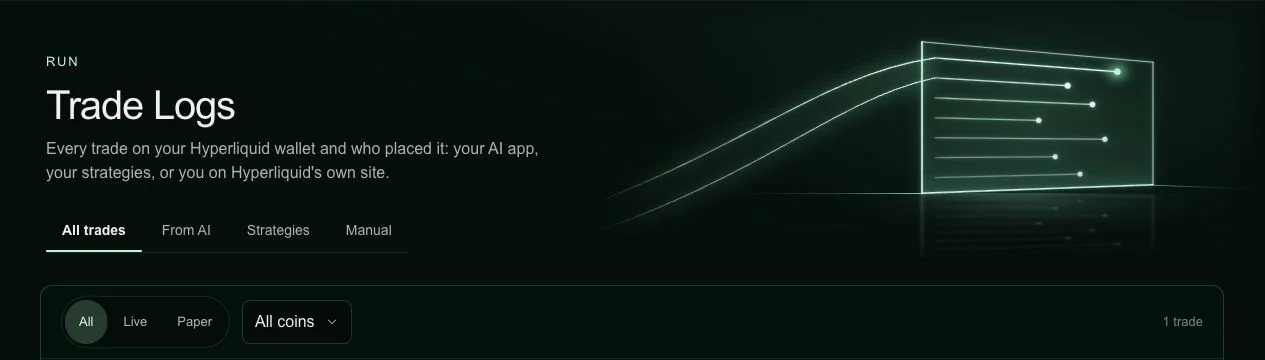
Antei Trade Logs separates paper and live execution and identifies who placed each trade.
Expand a trade to review its order type and effect, filled quantity, average price, value, fees, trade ID, strategy, and deployment. A trade appearing here confirms trading activity; a Runtime log row alone can describe an intent that was skipped or refused before any fill occurred.
A Practical Diagnostic Workflow
Confirm the deployment: check its strategy, market, execution mode, and worker status.
Open Runtime logs: locate the relevant Order skipped, Order refused, Order adjusted, Order expired, or Order filled row.
Expand the row: read the full message and event data, including the requested size and measured constraint.
Apply the named correction: change strategy sizing, deployment limits, price logic, or the condition stated in the log. Do not simply keep retrying.
Check Trade Logs: confirm whether a fill exists and whether it was paper or live.
Paper-test the revision: verify the corrected behavior before considering live execution.
Frequently Asked Questions
Why is an order in Runtime logs but not in Trade Logs?
The Runtime log can record an order intent that Antei skipped, refused, adjusted, or expired before a fill occurred. Trade Logs are for trading activity, so a skipped request will not appear as a filled trade.
How can I tell whether a fill was simulated?
Check the deployment's execution truth and the PAPER or LIVE label in Trade Logs. A paper deployment simulates fills and sends no real order to Hyperliquid.
Should I increase leverage when an order is refused?
Not automatically. Read the exact refusal message first. Increasing leverage does not fix every cause and can increase risk. Change only the setting or strategy input identified by the log.
What should I send to support?
Expand the relevant Runtime log row and use Copy report for admin. Review the report before sharing it. It contains the deployment and event context needed to investigate the specific order.
Diagnose Your Bot in Antei AI
Start with a paper deployment, inspect every skipped or refused order in Runtime logs, and use Trade Logs to confirm the resulting fills. Create an Antei AI account and start with paper trading.
Risk Note
This article is educational and is not investment advice. Perpetual futures and leverage involve substantial risk. Paper trading is a simulation and does not guarantee live results. A clean Runtime log does not guarantee that a live order will fill at the expected price.