How to Pause, Restart, or Stop a Hyperliquid Bot Safely with Antei AI
Follow the exact Antei Console controls to pause, resume, or permanently stop a Hyperliquid deployment—and verify the result before taking another action.
On this page
Antei places all three runtime controls inside the expanded deployment view. The buttons are named Pause, Resume, and Kill. In this guide, “stop” means the Kill action that ends the deployment and moves it to History.
Key takeaway
Open Deployments, expand the correct deployment, and use the three controls at the bottom of its details: Pause temporarily stops activity, Resume starts a paused deployment again, and Kill permanently ends that deployment. Confirm the new status before closing the page or starting another bot.
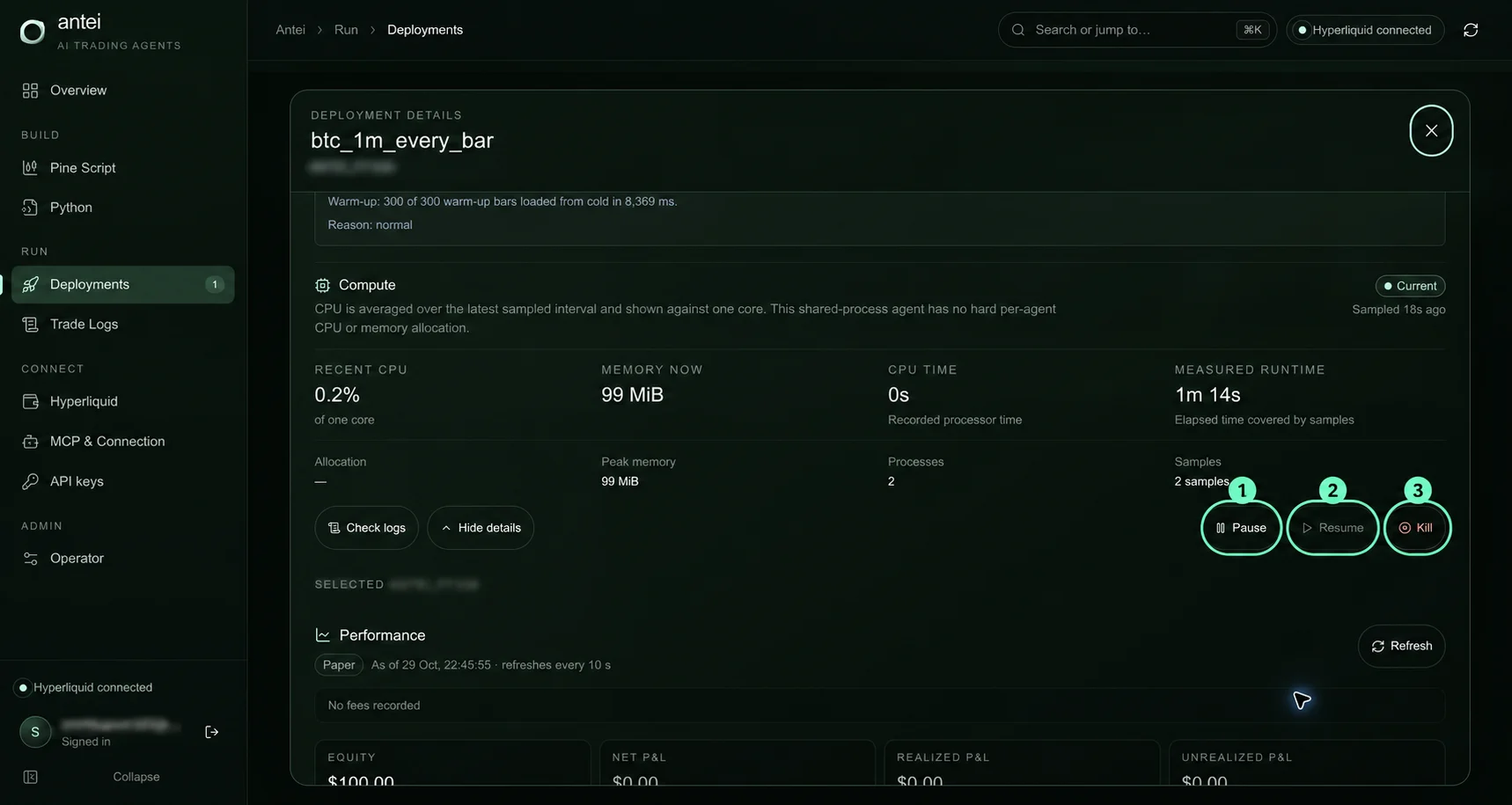
Desktop: 1 is Pause, 2 is Resume, and 3 is Kill. Resume is disabled while the deployment is already running.
Before you click anything
Sign in to the Antei Console.
Open Deployments from the left sidebar.
Choose the Pine or Python tab that contains the bot.
Stay on Active and click the deployment card to expand Deployment details.
Confirm the strategy name, deployment identifier, Paper/Live badge, worker status, open positions, and recent logs.
Do not operate a deployment only from memory. If two bots have similar names, use the deployment identifier and mode badge to confirm the target.
How to pause the bot
With the deployment details expanded, scroll to the control row and click Pause.
What happens next:
The card and Worker status change to Paused.
The runtime message says the deployment is paused and new entries are blocked.
Pause becomes disabled and Resume becomes enabled.
On a paper deployment, Antei stops the simulated runtime; no exchange position needs to be closed.
On a live deployment, the Pause control warns that it also cancels resting orders and closes the position on Hyperliquid.
Wait for the Paused status. A clicked button is not the same as a confirmed state change.
How to resume a paused bot
Open the paused deployment again and scroll to the same control row. Click Resume—the button marked 2 in the mobile screenshot below.
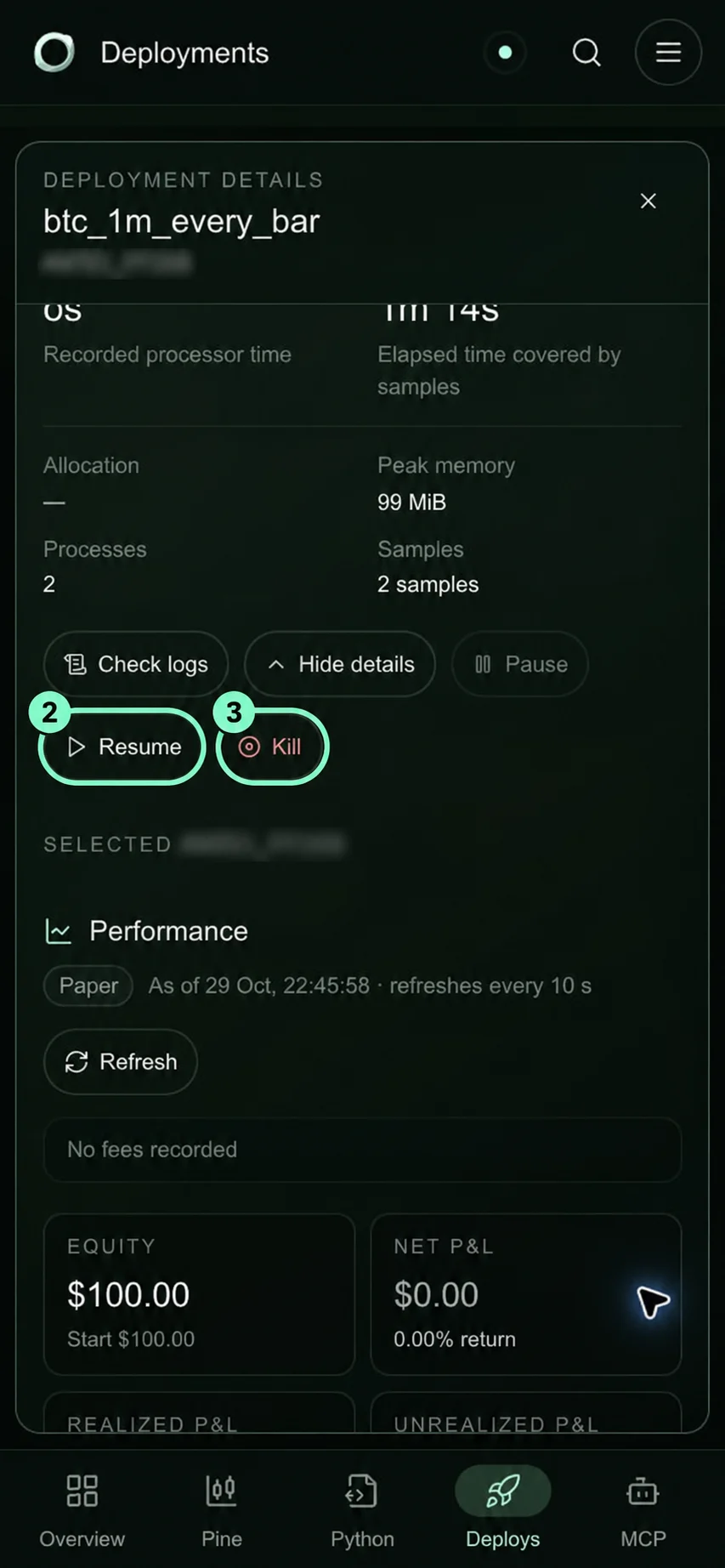
Mobile: after Pause completes, Resume becomes available. Kill remains available as the permanent stop action.
After clicking Resume:
Wait for Worker status to change from Paused to Running.
Confirm the runtime panel says Ready before expecting new signals.
Check that warm-up is complete; a restarted runtime may briefly show Warming up.
Review Check logs for the resume result or any data/venue warning.
Do not repeatedly click Resume. If the status does not become Running, refresh once and read the runtime message before taking another action.
How to stop the bot permanently
In Antei, the permanent stop control is labeled Kill. Expand the deployment and click Kill—button 3 in both screenshots.
For the paper deployment used in this guide, Antei returned: “Paper runtime halted—no exchange close needed. Moved to Killed Strategies.” The active deployment count changed to zero and the deployment appeared under History.
For a live deployment, treat Kill as a real-money operation. Confirm the worker has stopped, then verify the Hyperliquid account rather than assuming it is flat because the card moved to History.
How to verify each result
After Pause
Deployment badge: Paused
Worker status: paused
Runtime message: new entries are blocked
Button state: Resume enabled
After Resume
Deployment badge: Running
Worker status: running
Runtime message: Ready after warm-up
Button state: Pause enabled
After Kill
Deployment disappears from Active
Deployment appears under History
Active deployment count decreases
Logs and performance report remain available
For a live bot, also verify the actual Hyperliquid positions and resting orders. If Antei and Hyperliquid disagree, treat the state as unresolved and do not launch a replacement deployment.
Pause, Resume, and Kill are not interchangeable
Pause is temporary. Use it to investigate or interrupt a deployment you may continue.
Resume continues the same deployment and strategy version after a successful pause.
Kill is permanent for that deployment. To trade again, create or start the appropriate deployment from the reviewed strategy version.
Frequently asked questions
Why is Resume disabled?
Resume is disabled while the deployment is Running or while a previous action is still being confirmed. It becomes available after Antei confirms the Paused state.
Is restarting the same as creating a new version?
No. Resume continues the version already attached to the deployment. Code or settings changes must be saved as a new immutable version and tested separately.
What if the buttons are disabled after I click one?
Antei temporarily disables the action row while it confirms the state transition. Wait, refresh once if necessary, and read the worker status and last action response.
Final answer
Go to Deployments, expand the target bot, and use Pause, Resume, or Kill from the action row. Pause temporarily blocks activity, Resume continues the same deployment, and Kill ends it and moves it to History. Always confirm the platform status—and for live trading, the Hyperliquid account state—before taking the next action.
Risk notice: Live trading can result in loss. Pause and Kill can affect real orders and positions; verify the exchange state after every live control action.