How to Build a Hyperliquid Trading Bot in the Claude Desktop App: Step By Step Guide
Build a Hyperliquid trading bot in the Claude desktop app without a terminal: add Antei, then plan, backtest, paper trade and go live from one chat.

On this page
You do not need a terminal to build a Hyperliquid trading bot with Claude. The Claude desktop app has a Code tab where Claude Code works through a normal chat window: you type what you want, click to approve, and review every change on screen. Add Antei as a connector and that same chat can write your strategy, backtest it on historical Hyperliquid data, paper trade it, and run it live around the clock with risk limits outside your code. This tutorial shows each screen you will see, in order, and what to click next.
Quick Answer
To build a Hyperliquid trading bot in the Claude desktop app, open the Code tab, add Antei as a custom connector with the URL https://antei.ai/mcp/onboard, and ask Claude to build the strategy. Claude signs you in to Antei with an emailed code, writes the bot in Python, backtests it, paper trades it and deploys it live when you approve. The whole path is ten steps:
- Open the Code tab and choose a project folder.
- Add Antei as a custom connector.
- Turn Antei on for your session.
- Sign in to Antei from the chat.
- Plan the bot in Plan mode.
- Let Claude write the bot, and review it in the diff view.
- Backtest it on historical Hyperliquid data.
- Paper trade it on live prices.
- Connect Hyperliquid and go live in Manual mode.
- Get a weekday report from a routine.
You can finish the setup in about 30 minutes. Plan on at least a week of paper trading before you trade real money.
Key Takeaways
- No terminal, no server. You click through the Claude desktop app, and Antei hosts the bot, so it keeps trading after you close the app.
- Antei is a connector, not a plugin to install. Paste one URL into Customize, then sign in from the chat with a six-digit code.
- Every step happens in one chat. Claude plans, writes, backtests, paper trades, deploys and reports in the same conversation.
- You approve what matters. Antei asks you before it applies a default leverage, and Manual mode makes Claude show you every live deploy before it runs.
- Your funds never leave your Hyperliquid account. The bot trades through an API wallet that can place orders but cannot withdraw.
- A routine can brief you every morning. It reads the bot's report and logs and only reads, so it never changes your bot.
Why You Need Antei for This
Claude is excellent at writing trading code. Running that code against real money is a different job. A chat session is not a server, your laptop sleeps, and an exchange key has to live somewhere safe. Antei is the hosting and safety layer for that job, which is why we call it the Vercel for AI trading agents on Hyperliquid.
| What the bot needs | Claude app on its own | Claude app with Antei |
|---|---|---|
| Runs 24/7 | Only while your computer is awake and the app is open | Hosted by Antei in its own sandbox, whether your laptop is open or not |
| Realistic backtests | You find and clean the data yourself; Hyperliquid's API only serves the last 5,000 candles per interval | Up to 731 days of history, next bar fills, slippage, fees and funding included |
| Paper trading | Hyperliquid testnet, whose faucet needs a mainnet deposit first | Simulated fills on Hyperliquid's live order book |
| Exchange key | A secret on your machine that your code can read | Stored encrypted; your strategy code never sees it |
| Risk limits | Whatever your code remembers to check | Enforced outside your code: markets, leverage, position size, drawdown and daily loss |
| Stop button | Find the process and kill it | Say "pause" or "kill" in the chat |
Antei also runs Node.js bots and imports Pine Script strategies from TradingView, and the same connector works in Claude Code in the terminal, on claude.ai, in Codex and in Cursor.
New to Antei? You do not have to sign up on the website first. Claude creates your account from the chat in Step 4. If you prefer, create your Antei account now and sign in from the chat later.
What You Need
| What | Why | Notes |
|---|---|---|
| The Claude desktop app | Gives you the Code tab | macOS or Windows (Linux is in beta). The Code tab needs a Claude Pro, Max, Team or Enterprise plan. |
| A project folder | Where Claude keeps main.py and notes |
An empty folder such as hl-bot is fine. |
| An Antei account | Builds, tests, hosts and guards the bot | Created from the chat in Step 4, with no password. |
| A Hyperliquid account with USDC | Real orders only | Not needed for backtests or paper trading. Hyperliquid only approves API wallets for accounts that have deposited USDC. |
| A strategy written as rules | Claude implements rules; it does not invent an edge | Entry, exit, size per trade, leverage and stop. |
Step 1: Open the Code Tab and Choose a Folder
Open the Claude desktop app and switch to the Code tab at the top of the sidebar. Before you send the first message, set four things in the prompt box:
- Environment: choose Local so Claude works on your computer.
- Folder: click Select folder and pick your project folder, for example
hl-bot. - Permission mode: Auto is fine for building and testing. You will switch to Manual before going live in Step 9.
- Model: pick a model from the dropdown next to the send button.
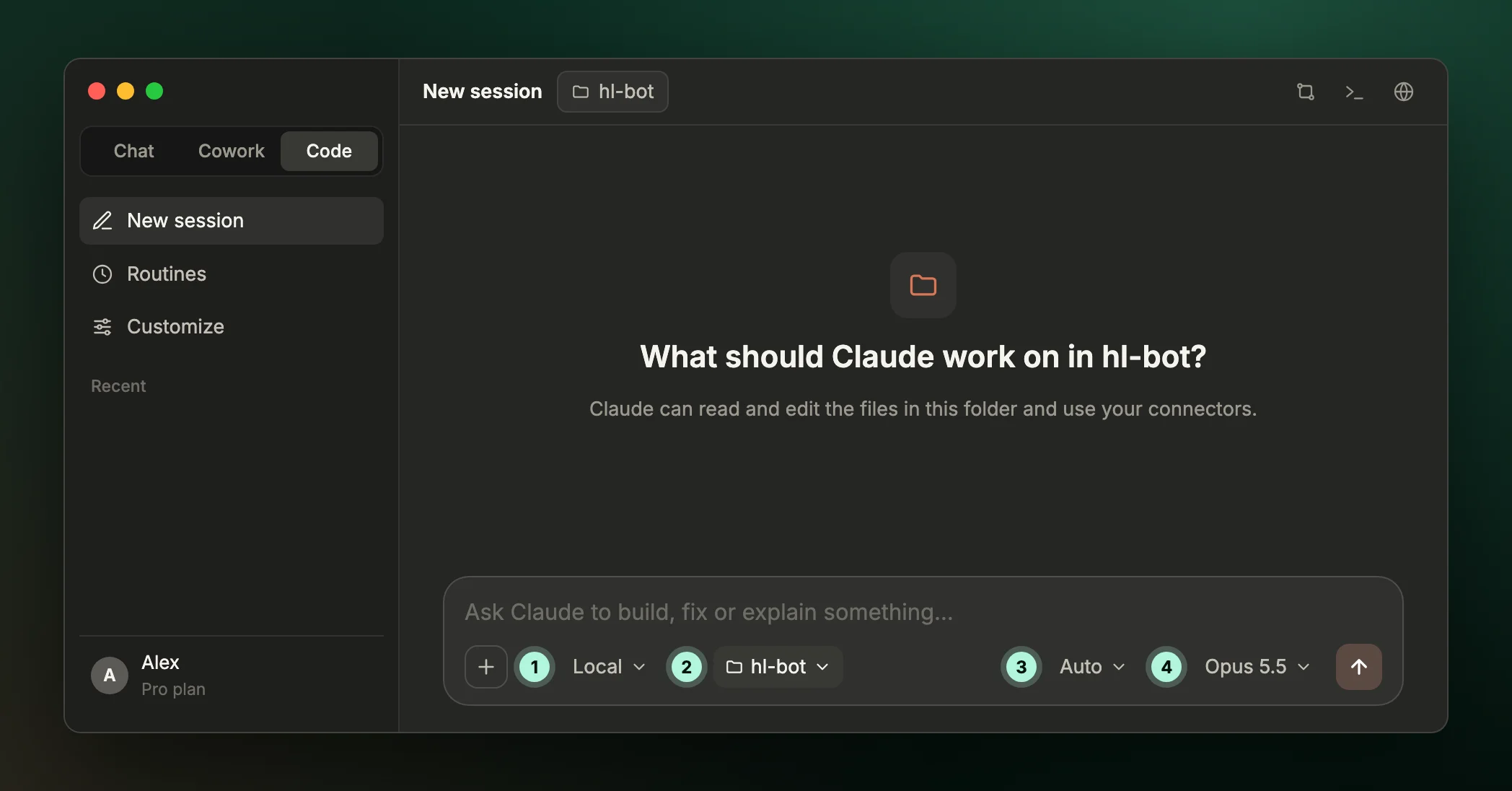
A new session in the Code tab. The numbered controls are the four settings above.
Step 2: Add Antei as a Custom Connector
Connectors are how Claude uses outside tools. They are MCP servers with a point and click setup. In the sidebar, click Customize, open Connectors, click + Add and choose Add custom connector. Fill in two fields:
- Name:
Antei - Remote MCP server URL:
https://antei.ai/mcp/onboard
Click Continue, keep the default sign-in settings, and finish adding it. The connector itself does not sign you in to an Antei account. That happens in the chat in Step 4, with a code sent to your email.
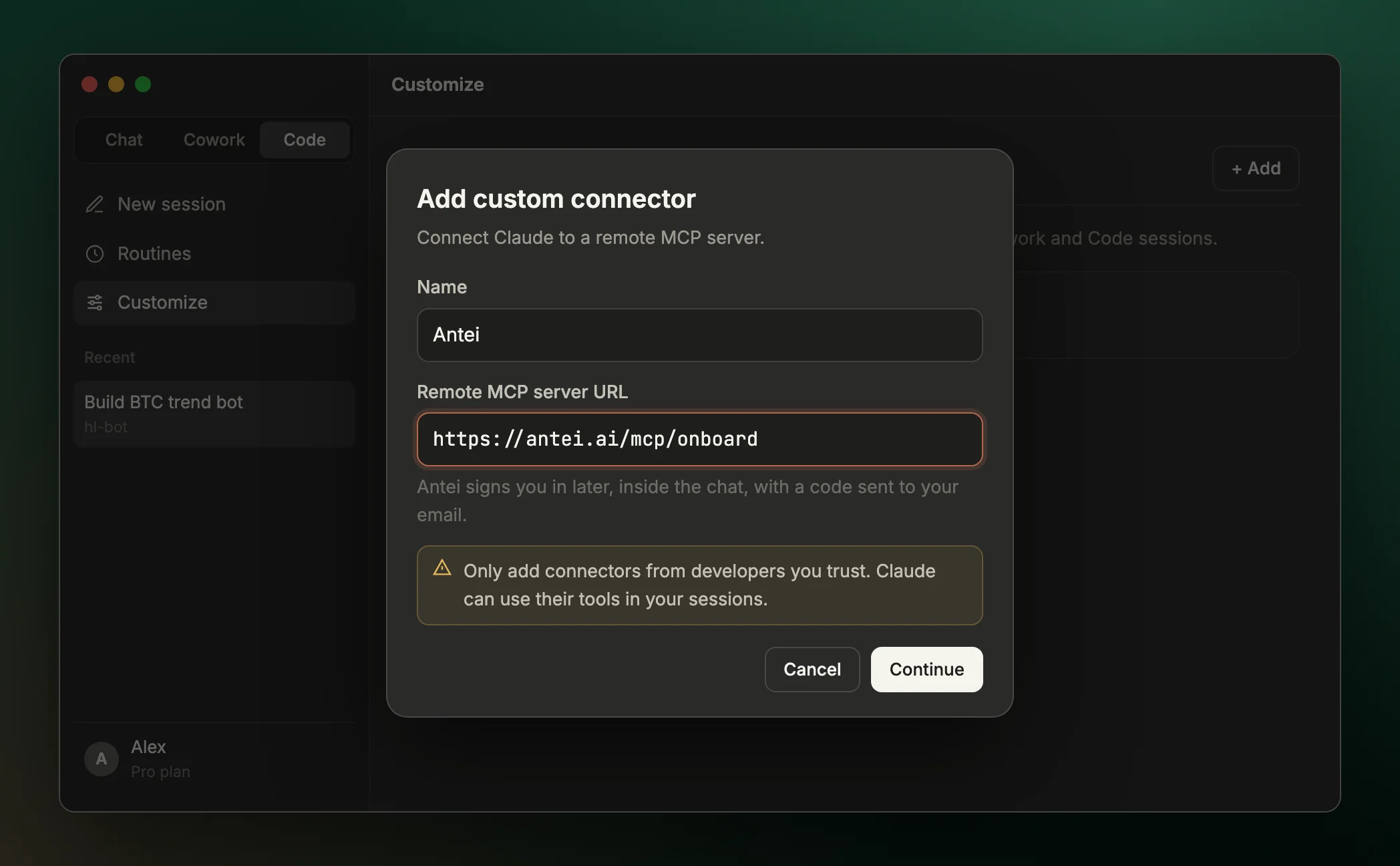
One URL is the whole install. Only add connectors from developers you trust.
Already use Claude Code in the terminal? If you added Antei there with claude mcp add, the desktop app reads the same configuration, so Antei is already available and you can skip to Step 4.
Step 3: Turn Antei On for Your Session
Click the + button in the prompt box, open Connectors, and switch Antei on. Connectors can be turned on and off per session, so a session about something else never sees your trading tools.
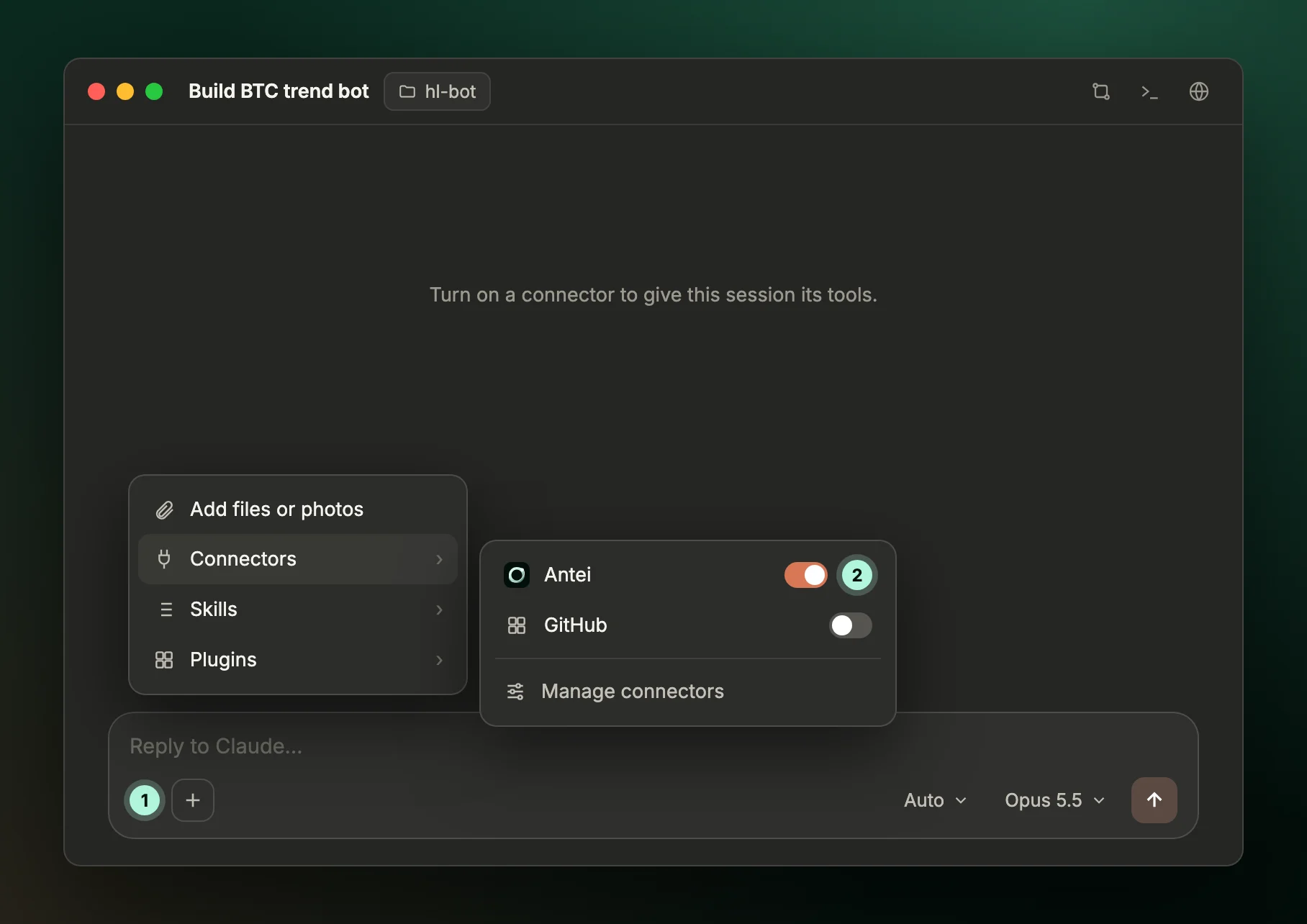
Use the + menu (1) to switch Antei on (2) for this session.
Step 4: Sign In to Antei From the Chat
Now just ask. Tell Claude your name, your email and the access it should have. Start with paper access:
Connect my Antei account. I'm Alex, alex@example.com. Paper trading access for now.
Claude calls Antei's sign_in_with_email tool, and Antei emails you a six-digit code. The email names the app and the access it asked for, and the code expires after 10 minutes. Type the code into the chat. Claude calls verify_email_code, and your Antei account is created or signed in. No password, no website, no API key to copy.
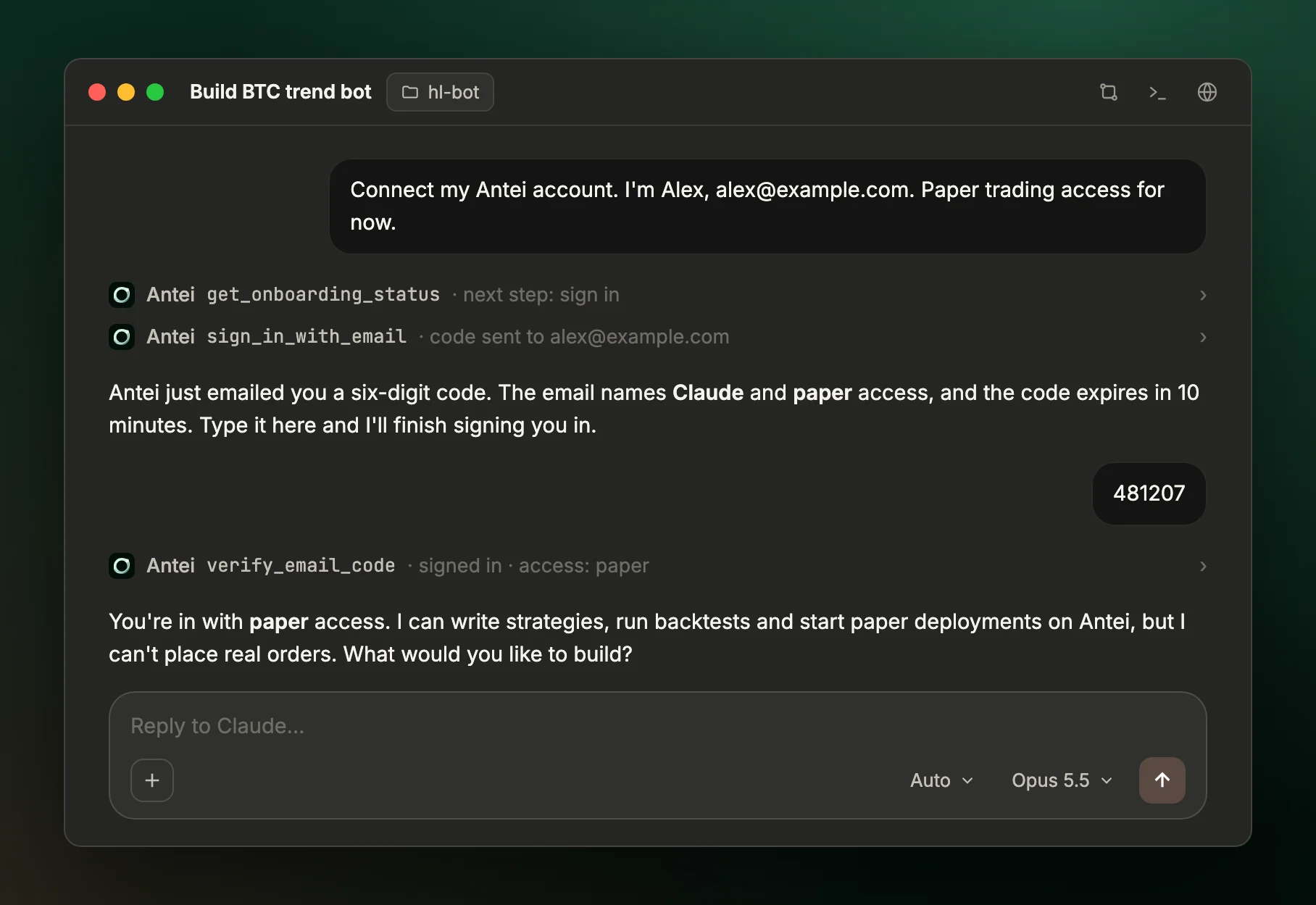
Antei tool calls appear as compact rows. Click a row to see exactly what was sent and returned.
Antei gives an AI app one of three access levels:
- Read: view strategies, backtests and deployments.
- Paper: also write strategies, run backtests and start paper deployments.
- Trading: also deploy and manage live strategies.
Claude can ask for more access later, and you confirm it with a new emailed code. An AI app can never give itself trading access.
Step 5: Plan the Bot in Plan Mode
Switch the mode selector next to the send button to Plan. In Plan mode Claude researches and proposes, but does not write files, so you agree on the design first. Describe the strategy as rules:
Build a BTC trend bot for Hyperliquid on 1h candles. Long when the 12 EMA is above the 26 EMA, flat otherwise. $100 per trade, 2x leverage, 2% stop. Use Antei's Python SDK and backtest 12 months first.
Claude fetches Antei's starter template with get_strategy_template and shows a plan. Check the market, timeframe, size, leverage, stop and test window. If anything is off, choose to keep planning and say what to change.
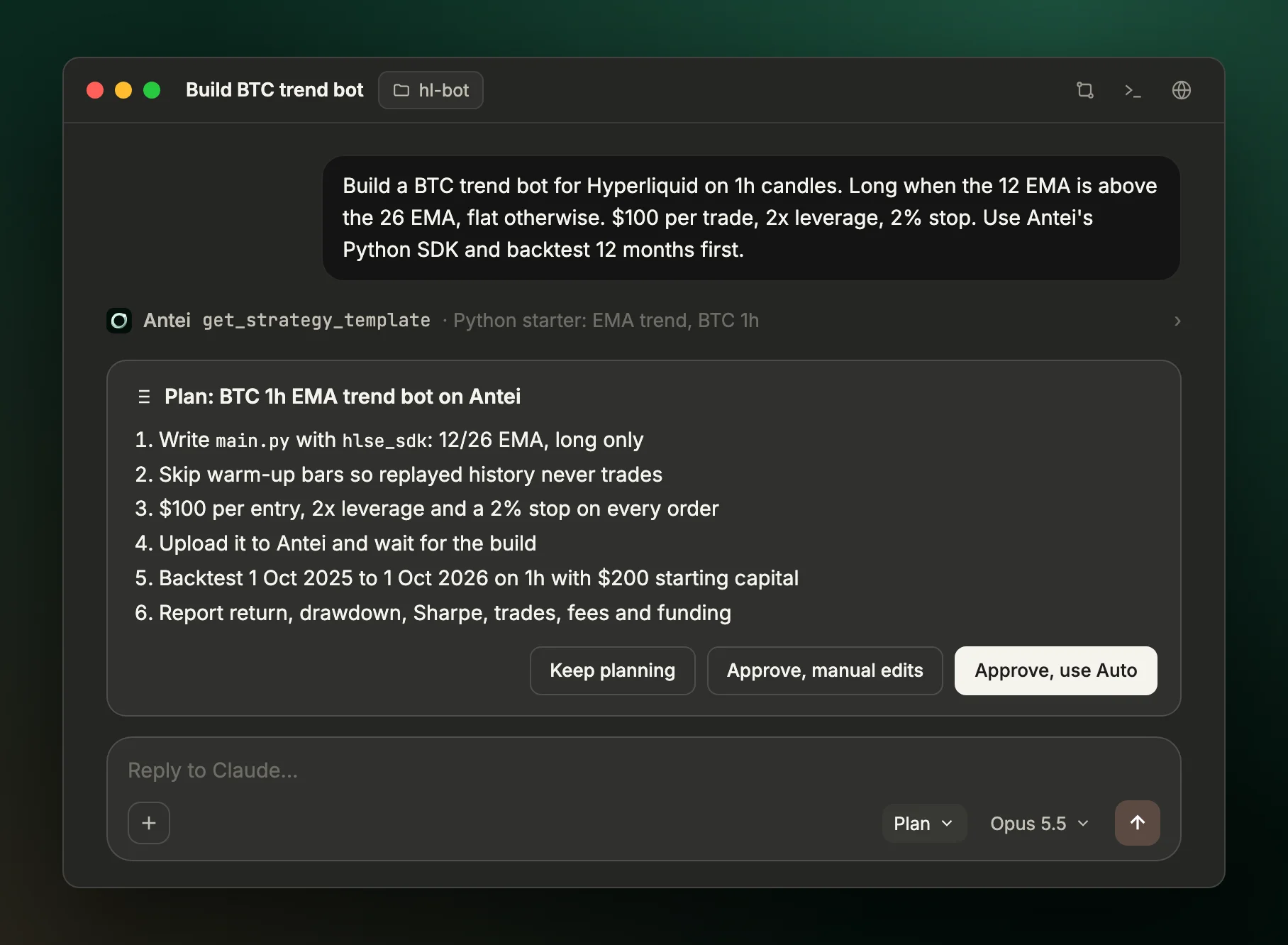
Approve the plan only when the rules, sizes and test window are what you want.
Tip: Ask Claude to save your ground rules in a CLAUDE.md file in the folder, for example: "Never trade on warm-up bars. Every entry sets a stop and a leverage. Always backtest and paper trade before suggesting live. Never deploy live or approve leverage without my explicit yes." Claude reads that file at the start of every session.
Step 6: Let Claude Write the Bot, and Review It in the Diff View
Approve the plan and Claude writes main.py with Antei's Python SDK, then uploads it to Antei with upload_python_strategy. Each upload becomes a new, read-only version, and uploading never trades. Claude waits until Antei reports the build succeeded.
A counter such as +54 -0 appears at the top of the session. Click it to open the diff view, where you can read every line Claude wrote. To ask for a change, click a line, type a comment and submit it (Cmd+Enter on macOS, Ctrl+Enter on Windows). Claude revises the file and you review the new diff.
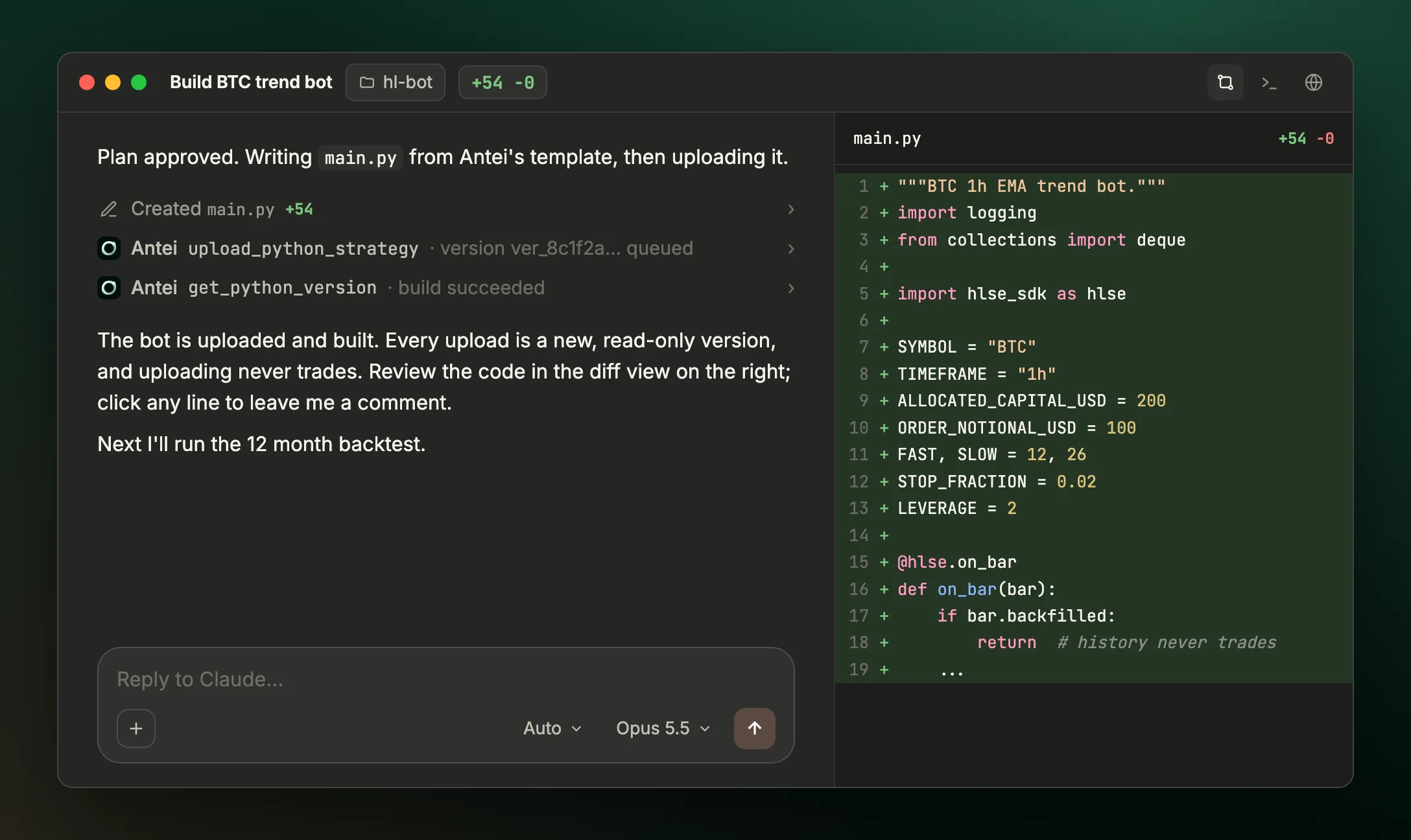
Comment on any line in the diff view to have Claude change it.
You do not have to read Python to use this, but skim three things: the bot skips warm-up bars (bar.backfilled), every order sets a stop and a leverage, and the size per trade stays above Hyperliquid's $10 minimum. The terminal version of this guide walks through the complete main.py line by line.
Step 7: Backtest It on Historical Hyperliquid Data
Ask Claude to run the backtest from the plan. It calls backtest_python_strategy with the version, dates, timeframe and starting capital, reads the result with get_python_backtest, and summarizes it in a table.
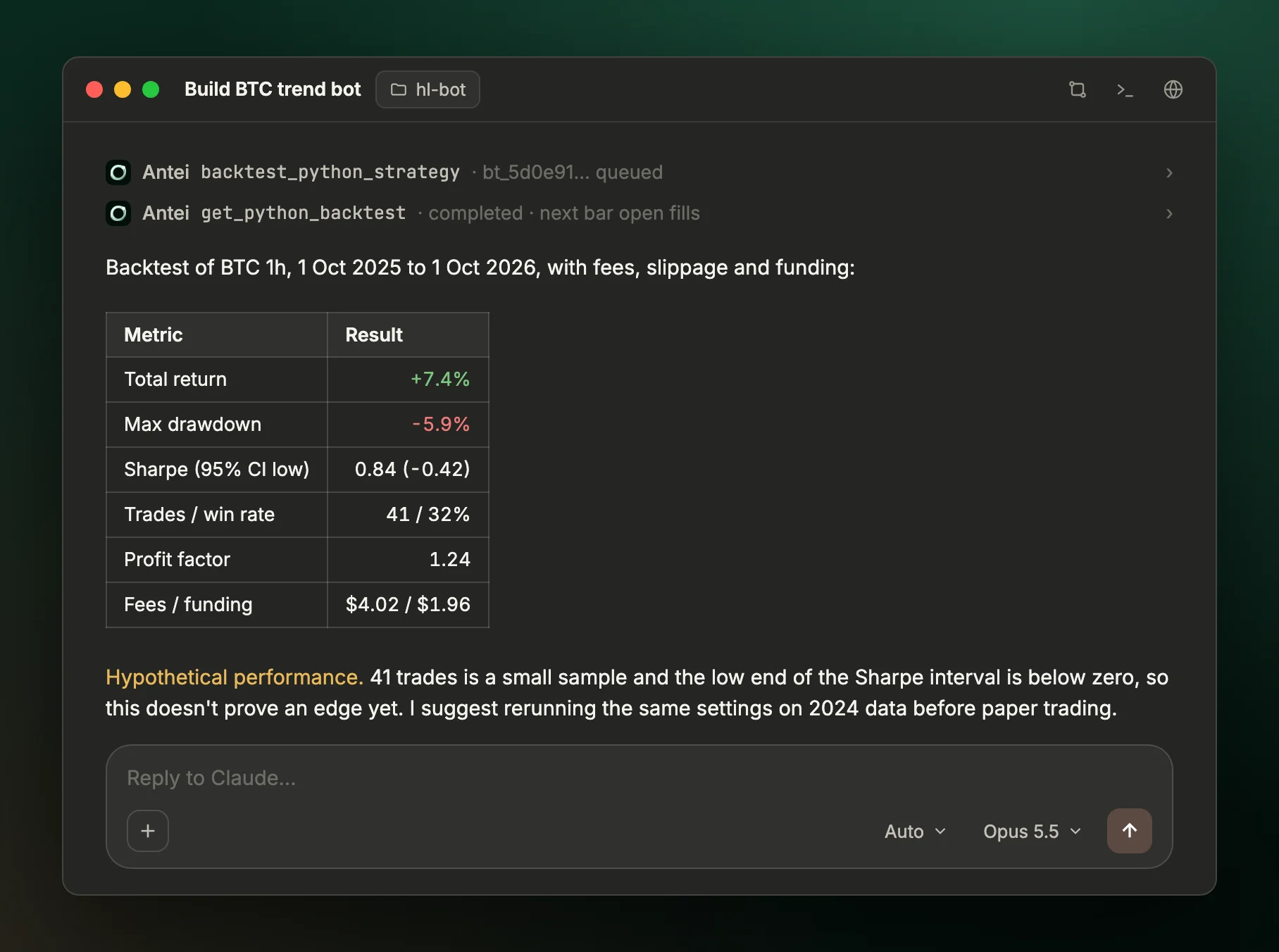
Example output for illustration, not a real result. A good assistant flags the weak spots before the return.
Antei's backtests lean pessimistic on purpose. Fills happen at the next bar's open, each side pays slippage, every fill pays Hyperliquid's taker fee plus Antei's fee, and open positions pay realized funding. Before you move on, check four things:
- Enough trades. Fewer than about 100 trades can look good by luck.
- The low end of the Sharpe interval. If it is below zero, the edge is not proven.
- Costs against profit. Fees and funding should leave a profit standing.
- A second period. Ask Claude to rerun the same settings on data you did not design with, such as the year before.
Our guide to rigorous backtesting for Hyperliquid trading agents covers this in depth.
Step 8: Paper Trade It on Live Prices
When the second test agrees with the first, ask Claude to start paper trading. Antei asks for your approval of the default leverage before any deploy, and Claude shows that question as a card with choices. Pick an answer and Claude deploys with deploy_python_strategy in paper mode.
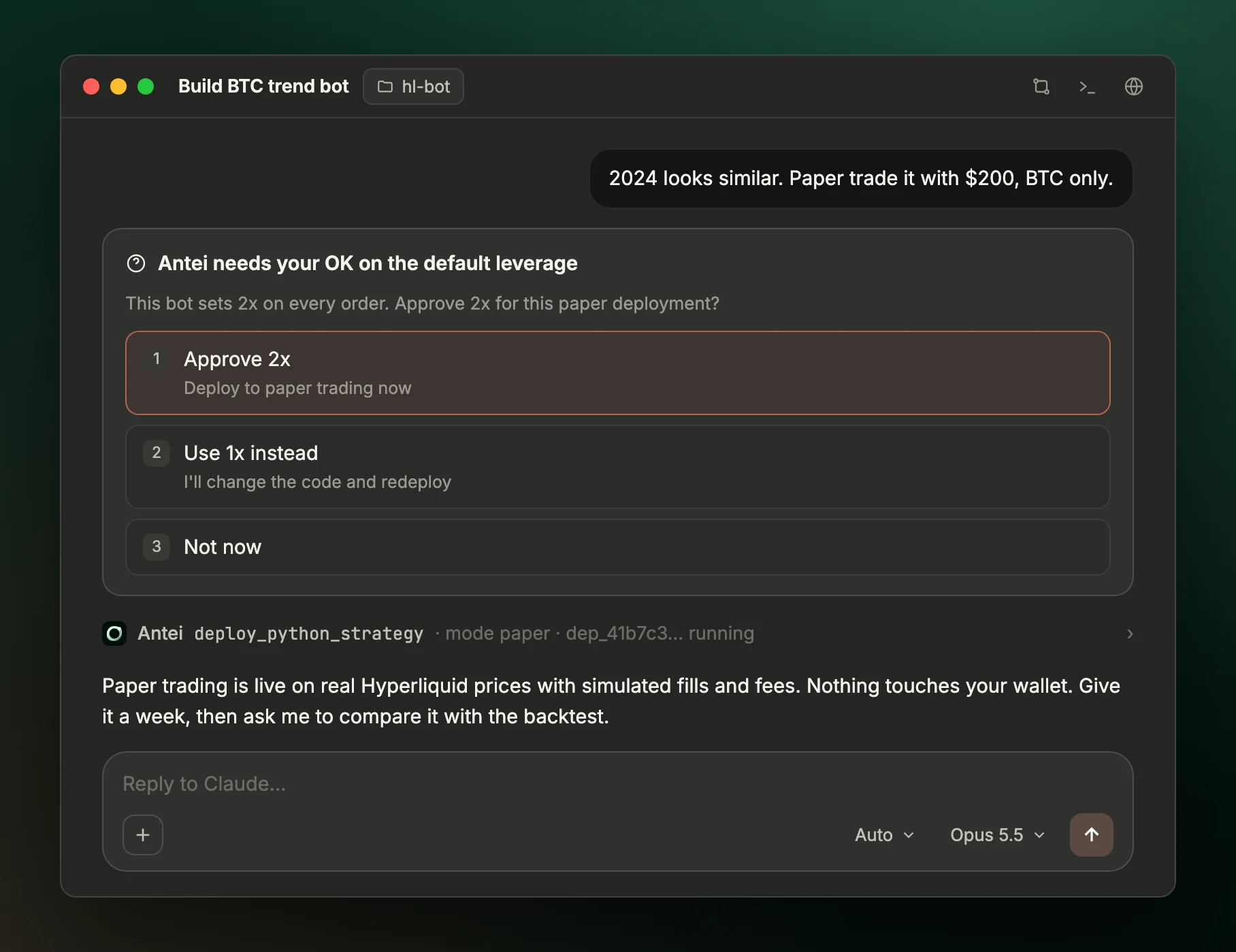
Paper trading uses Hyperliquid's live prices and order book with simulated fills. Nothing touches your wallet.
Let it run for at least a week, then ask: "Compare the paper results with the backtest." You want a similar number of trades, fills close to what the backtest assumed, and no refused orders in the logs.
Step 9: Connect Hyperliquid and Go Live in Manual Mode
Real orders need trading access in Antei, which Claude requests with a new emailed code, and a Hyperliquid API wallet. Claude walks you through creating one:
- Open app.hyperliquid.xyz/API and connect your main wallet.
- Enter any name and click Generate.
- Choose how long it stays valid. Shorter is safer; Hyperliquid allows at most 180 days.
- Click Authorize and copy the private key, which Hyperliquid shows only once.
- Send Claude your main wallet's public address and the API wallet's private key.
That is your API wallet's private key, never your main wallet's. An API wallet can only trade: it cannot withdraw your funds or send them to another wallet. Your funds stay in your own Hyperliquid account, and only your main wallet can withdraw them. Antei stores the key encrypted, checks it with Hyperliquid, and refuses a main wallet key if you paste one by mistake. The key does pass through your chat with Claude, so give the API wallet a short validity and remove it on Hyperliquid's API page when you stop using it.
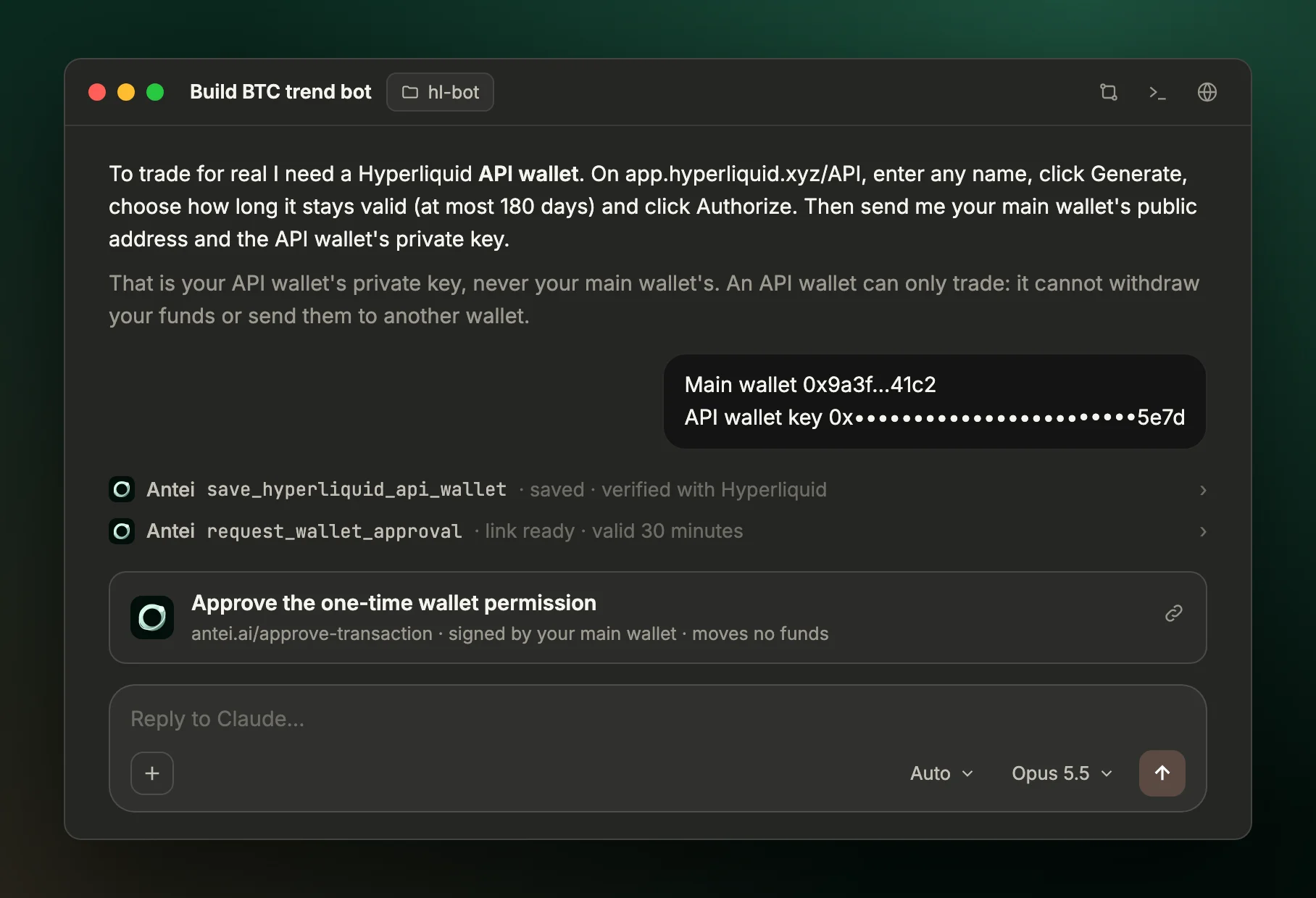
Claude saves the API wallet with Antei, then gives you a one-time wallet permission link.
Open the link Claude gives you (it is valid for 30 minutes) and sign the one-time wallet permission with your main wallet. It moves no funds and costs no gas.
Now switch the mode selector to Manual. In Auto mode a background check approves routine actions for you, which is what you want while building, but a live deploy deserves your own eyes. In Manual mode, Claude shows each Antei call as a card with every parameter before it runs. Ask Claude to go live with your limits, read the card, and approve it once. Do not choose to always allow this tool.
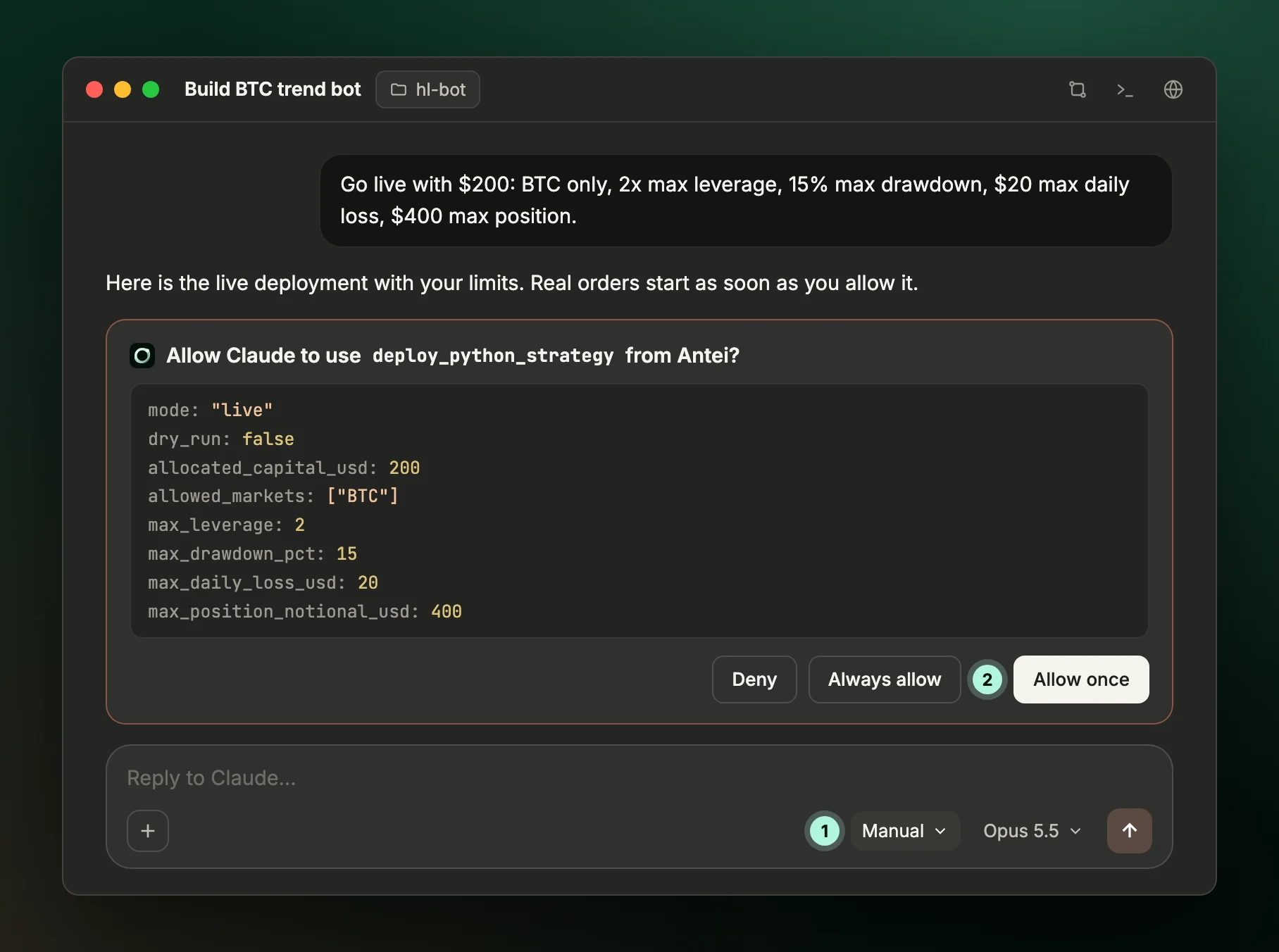
Switch to Manual (1), read every number, then approve this one call (2).
Antei refuses a live deploy unless all of these are set, and enforces them outside your code:
| Limit | What Antei does |
|---|---|
| Allowed markets | Refuses orders for any other market |
| Max leverage | Clamps any higher leverage down to it |
| Max position size | Caps the resulting position, in dollars |
| Max drawdown | Closes positions and pauses the bot if it is breached |
| Max daily loss | Blocks new entries until 00:00 UTC; exits still work |
Antei also adds a stop to any entry that arrives without one, and allows only one real-orders deployment per wallet and coin. Start at the smallest size that clears Hyperliquid's $10 minimum, and scale only after live fills look like your paper fills.
Step 10: Get a Weekday Report From a Routine
The desktop app can run Claude on a schedule. In the Code tab sidebar, click Routines, then New routine, and choose Local. Give it a name, the instructions below, your hl-bot folder and a schedule such as Weekdays at 08:00. You can also just tell Claude in any session: "Set up a weekday routine at 8am that reads my live Antei bot's report."
Read the report and logs of my live Antei deployment for BTC. Summarize P&L, fees, funding, drawdown against my 15% limit, open positions and any refused orders. Only read: never deploy, pause, resume or kill.
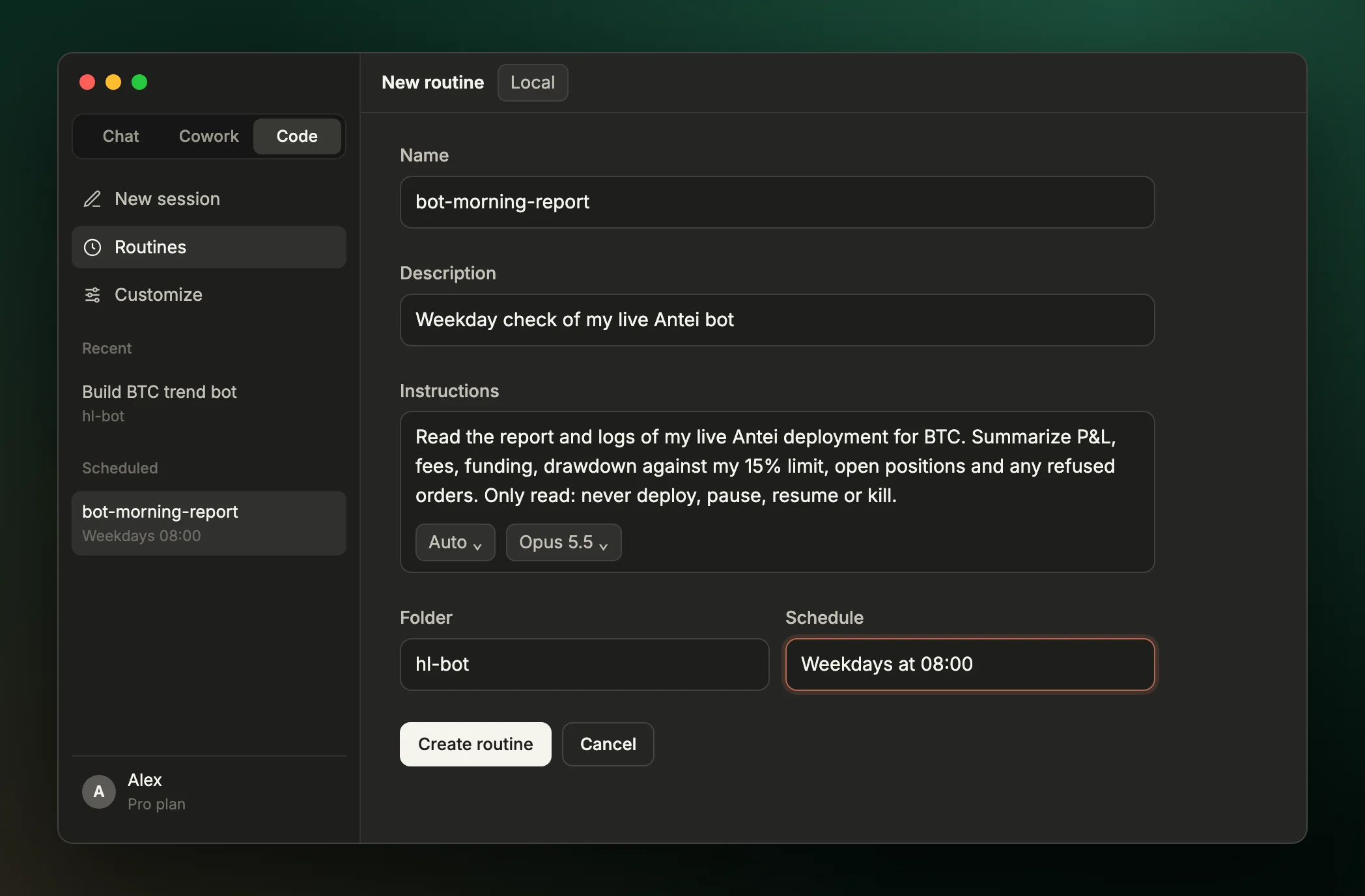
A local routine that briefs you on the bot every weekday morning.
Each run opens a new session under Scheduled in the sidebar with Claude's report. If something needs action, reply in that session. Pause and kill do different things:
- Pause stops the strategy and cancels its resting entry orders. Open positions keep their stops and take profits on Hyperliquid. Say "resume" to restart it.
- Kill cancels the orders, closes the positions and stops the deployment for good.
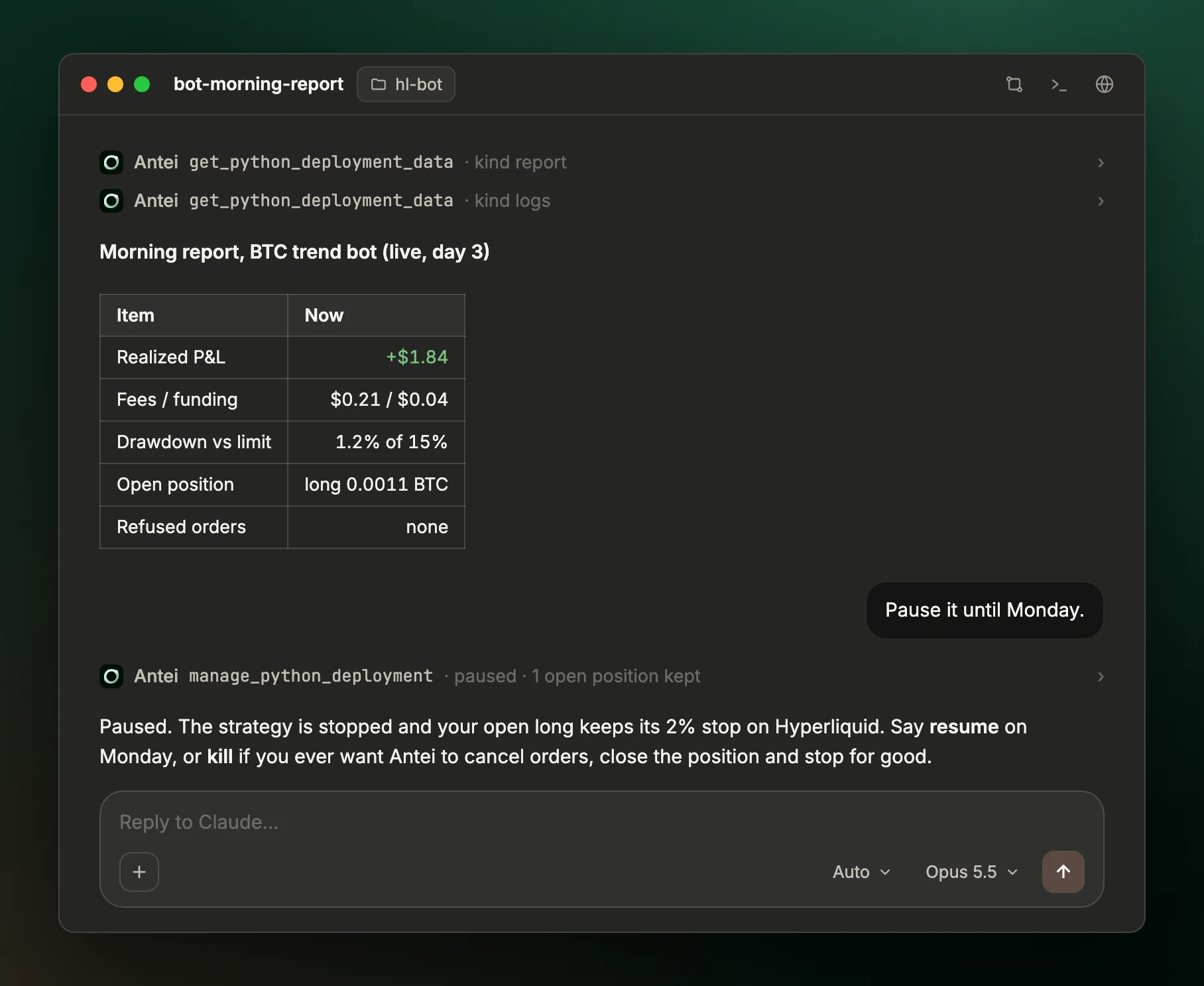
The routine reports; you decide. Here the bot is paused until Monday.
A local routine only runs while the app is open and your computer is awake (turn on Keep computer awake in Settings if you rely on it). The bot itself does not depend on the routine: it keeps running on Antei either way.
Desktop Tips That Keep You Safe
- Build in Auto, go live in Manual. Auto mode is fast for writing and testing. Manual mode puts every live deploy in front of you.
- Approve deploys once, every time. Choosing to always allow
deploy_python_strategyormanage_python_deploymentremoves your last check. - Keep Antei on only where you trade. Switch the connector off in sessions about other work.
- Use the diff view as your code review. A comment on a line is the fastest way to change one rule.
- Ask a side question without derailing the session. The desktop app's side chat is handy for "what does profit factor mean?" mid build.
- Never paste a main wallet key or seed phrase. Only an API wallet key belongs in the chat.
Prompts You Can Copy
- Start from rules: "Build a [market] bot on [timeframe] candles with Antei's Python SDK. Enter when [rule], exit when [rule], [size] per trade, [leverage] leverage, [stop] stop. Plan first, then backtest 12 months."
- Stress test: "Rerun the backtest with the EMA pairs 10/30, 12/26 and 15/40 on two different years. Put the results in one table and tell me if the result depends on one setting."
- From TradingView: "Import this Pine Script strategy into Antei and backtest it on BTC 1h for the last year." Antei runs Pine Script strategies too.
- Weekly review: "Compare my paper and live results for the BTC bot this week and list anything that differs from the backtest."
- Emergency stop: "Kill my live BTC deployment now and confirm the position is closed."
Frequently Asked Questions
Can I build a Hyperliquid trading bot in the Claude app without using a terminal?
Yes. The Code tab in the Claude desktop app runs Claude Code in a chat window, and Antei connects as a custom connector with one URL. Claude writes the bot, and Antei backtests, paper trades and hosts it. You only click, type in the chat and approve changes; no command line is needed.
Which Claude plan do I need?
The Code tab in the Claude desktop app requires a Claude Pro, Max, Team or Enterprise plan. Antei works as a custom connector on those plans. You also need an Antei account, which Claude creates for you from the chat, and a Hyperliquid account with USDC only when you want to trade real money.
Does my bot stop when I close the Claude app?
No. Claude only builds and manages the bot; Antei runs it on its own servers around the clock. You can quit the app, shut down your laptop and come back later to ask Claude for the report. Only local routines, such as a morning report, need the app open and your computer awake.
What is a custom connector in Claude?
A custom connector adds a remote MCP server to Claude, so Claude can use that service's tools. You add one under Customize, Connectors, Add custom connector, with a name and a URL. For Antei the URL is https://antei.ai/mcp/onboard, and you then switch the connector on per session from the + menu.
Is it safe to paste my Hyperliquid API wallet key into Claude?
Only the API wallet key, never your main wallet's key. A Hyperliquid API wallet can place orders but cannot withdraw or send funds, so your money stays in your account. Antei stores the key encrypted and your strategy code never sees it. Give the API wallet a short validity and remove it on Hyperliquid when you are done.
Can I use claude.ai instead of the desktop app?
Yes. The same Antei connector works in claude.ai chats, and in Claude Code in the terminal, Codex and Cursor. The desktop Code tab adds a project folder, a diff view to review the bot's code, Manual mode for approving live deploys, and routines for scheduled reports, which is why this guide uses it.
How do I stop the bot quickly?
Tell Claude "pause my bot" or "kill my bot" in any session where Antei is switched on. Pause stops the strategy and keeps open positions with their stops. Kill cancels orders, closes positions and stops the deployment for good. Antei also pauses the bot on its own if your max drawdown limit is breached.
What does it cost?
You pay for your Claude plan, Hyperliquid's own trading fees (0.045% taker and 0.015% maker at the base tier for perpetuals), and Antei's fee on the fills it places, which you approve once with the wallet permission before your first live trade. Ask Claude to check Antei's current fee with get_antei_fees before going live.
Start Building in the Claude App
The fastest way to learn is one full loop at tiny size: plan, write, backtest, paper trade, then go live at the minimum. Add Antei as a connector, ask Claude to build your first strategy, and let Antei do the hosting, testing and guarding. Create your Antei account, read the MCP guide, or learn how Antei deploys bots to paper and live, hosts Python and Node.js bots and connects Hyperliquid safely. Prefer the terminal? Follow our Claude Code terminal guide.
The Claude app screenshots in this guide are illustrations of a typical session, not captures of the app; your screens and numbers will differ. This guide is educational and is not investment advice. Leveraged trading can lose money quickly, and backtest or paper results do not guarantee live results.