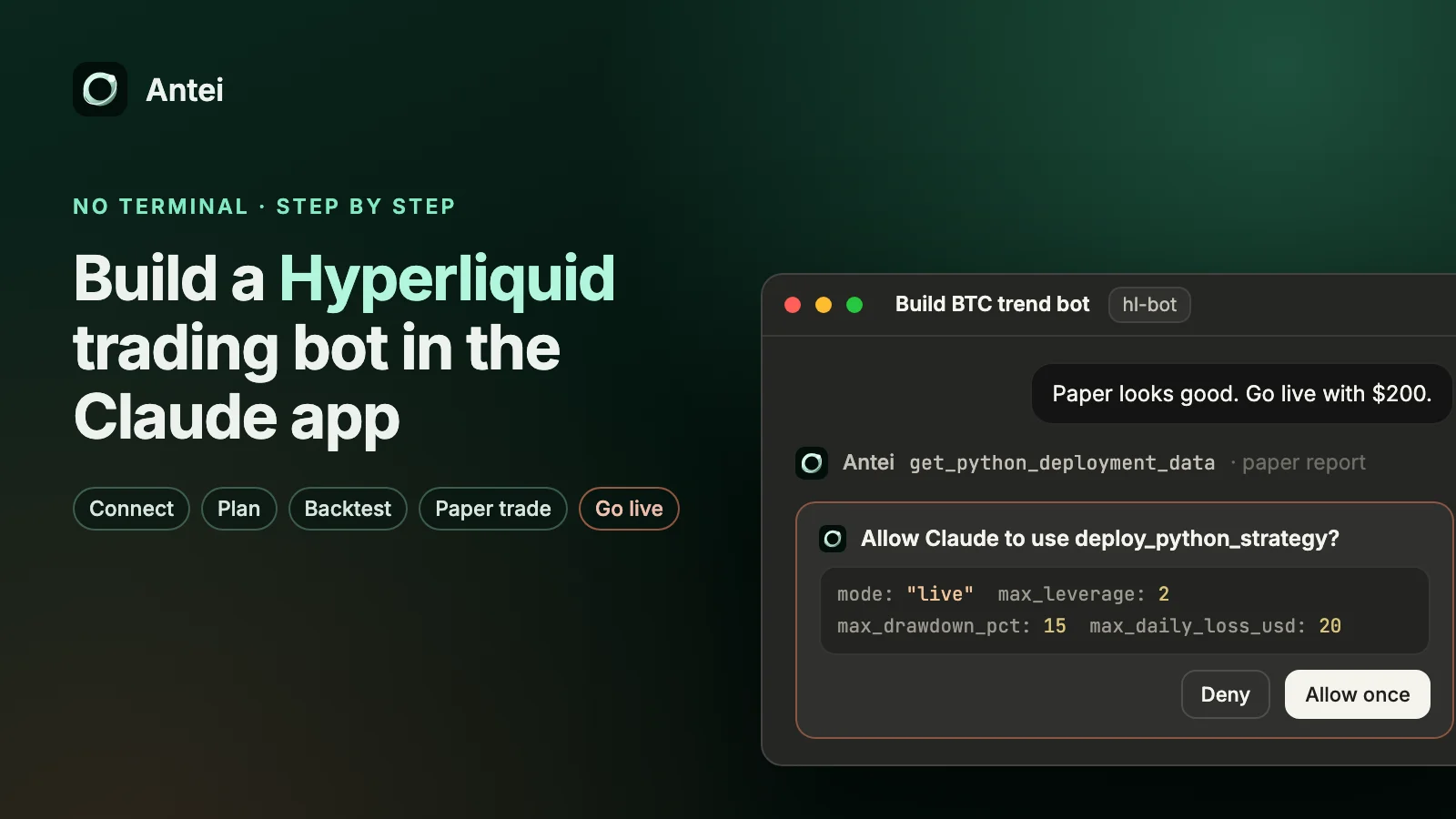
How to Start AI-Assisted Trading on Hyperliquid Without Managing Your Own Server

On this page
Connect an AI assistant to Antei AI, keep permissions scoped, and use managed strategy infrastructure instead of maintaining a VPS.
Key Takeaway
You can use Claude, Codex or another MCP client to help build, backtest, deploy and inspect a Hyperliquid strategy without running your own server. Antei AI provides the managed build and runtime layer; MCP provides the assistant-facing workflow; paper/live separation, scoped authorization and user approval keep consequential actions visible.
The AI assistant is an operator interface—not a promise of profitable decisions and not a reason to grant every permission.
What “without managing a server” means
With a self-hosted bot, you own the machine, process supervision, dependency installation, secrets, data feeds, logging and restarts. With Antei’s hosted Python workflow, you upload a Python or Node.js project, Antei scans and builds an immutable version in an isolated sandbox, and the managed runtime keeps it running.
For Pine Script, Antei runs the strategy on its own Pine runtime. You do not need TradingView alerts, webhooks or a computer left open.
Step 1: Connect your AI assistant through MCP
Antei publishes an MCP setup page for supported clients. The endpoint is the bridge that lets an assistant call product workflows such as listing strategies, starting backtests, checking readiness, preparing deployments and reading logs.
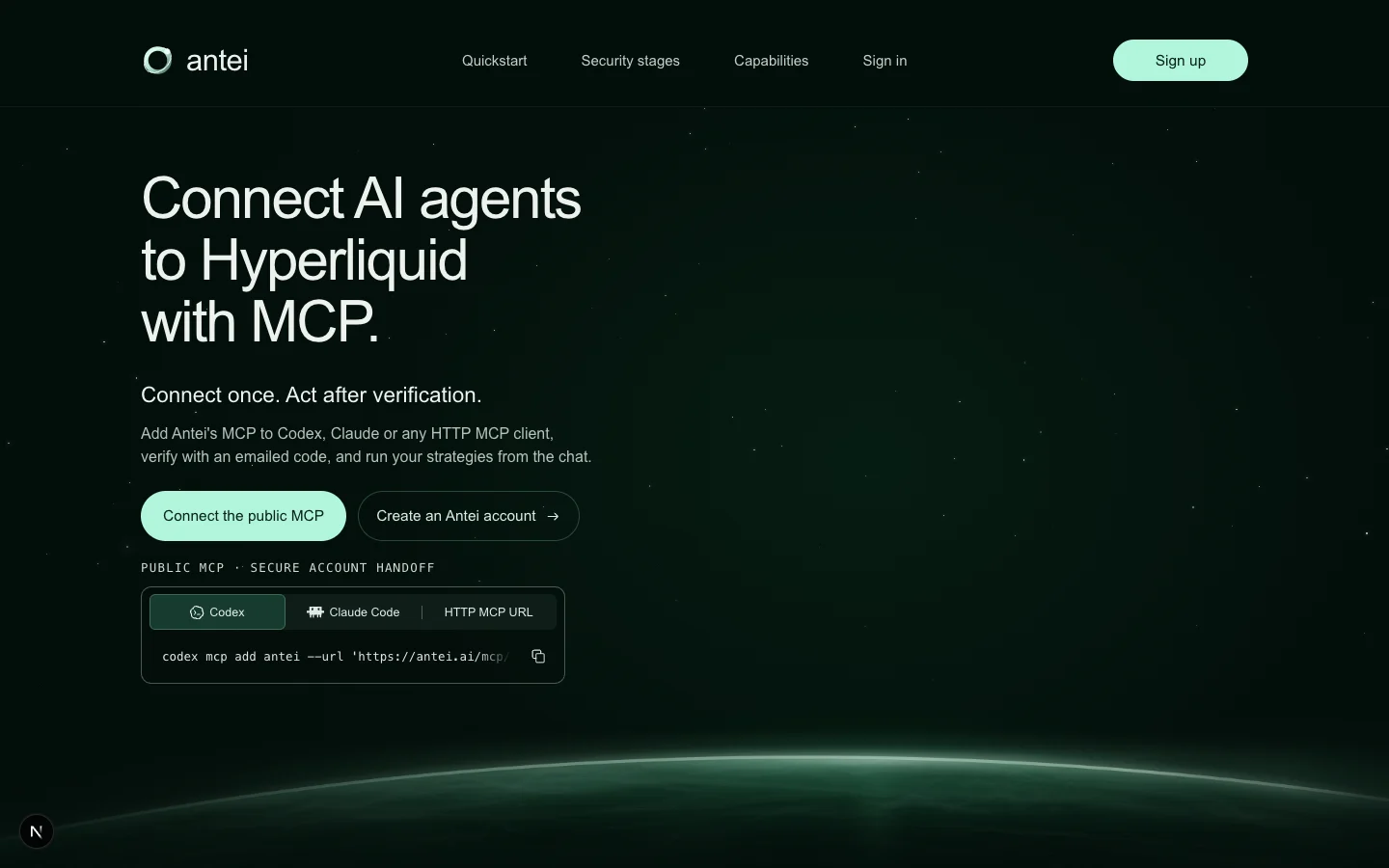
The repository’s real public MCP page shows client-specific connection options before account access is granted.
Connection uses OAuth authorization code flow with PKCE. Sign-in and scope approval remain with Antei rather than being replaced by a prompt inside the assistant.
Step 2: Begin read-only
Use the minimum access needed for the current task. A read-only connection can inspect strategy versions, backtest results and deployment status without receiving permission to deploy paper or live strategies.
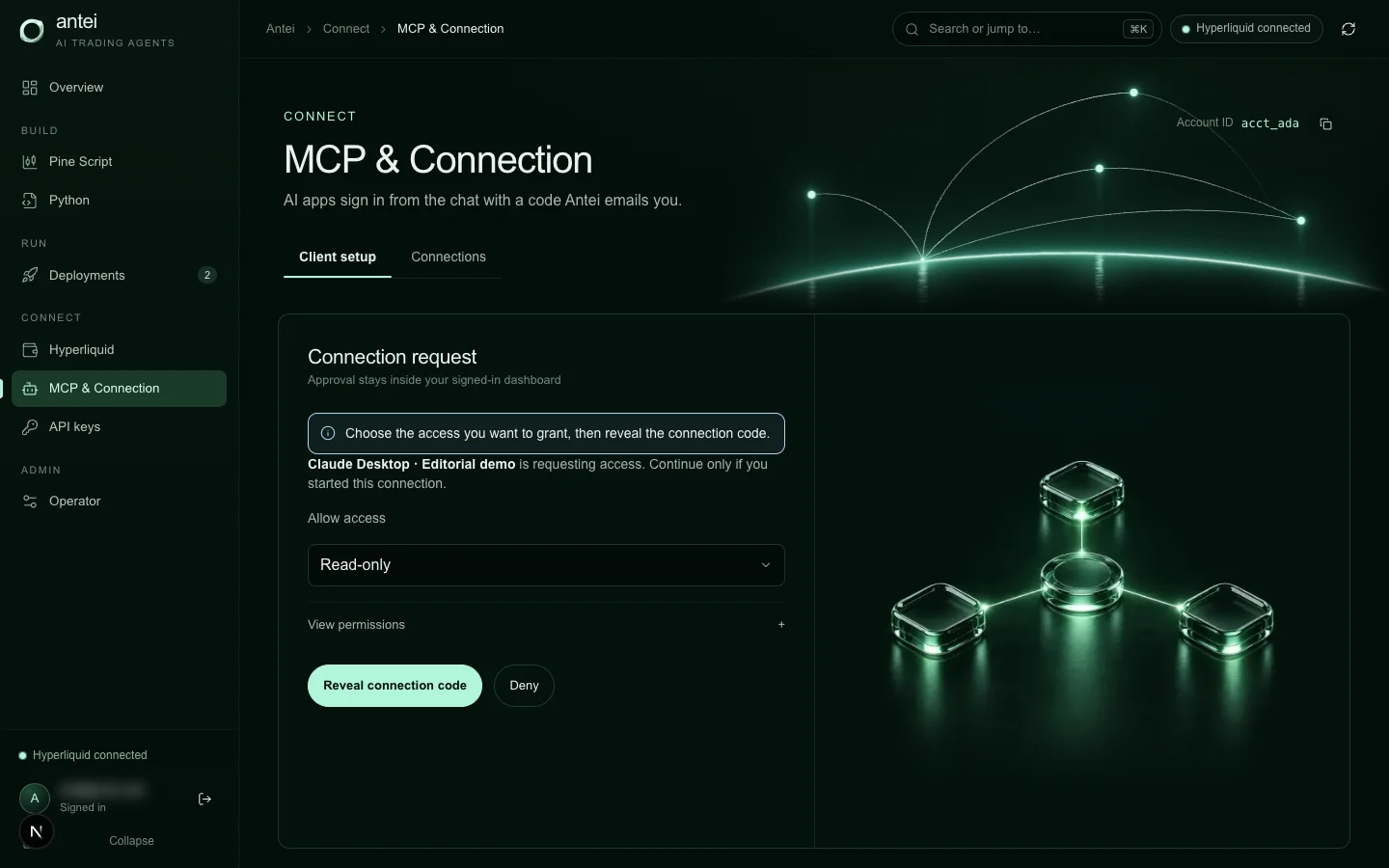
A read-only authorization keeps inspection separate from trading permission. Demo account text is blurred.
Expand access only when the workflow genuinely needs it. Tools that deploy, cancel, stop, close positions or save a credential require explicit user interaction metadata; they are not ordinary background reads.
Step 3: Give the assistant a bounded job
A useful request names the artifact and the acceptable action. For example:
“Inspect version ver_…, run a BTC-PERP paper backtest over the last 90 days, summarize data quality and zero-trade diagnostics, and do not deploy.”
That is safer and easier to verify than “trade for me.” It identifies the version, market, environment and stopping point.
Step 4: Let Antei build the version
For hosted code, dependencies and entry points are not installed ad hoc on your laptop. Antei scans the upload, validates the project and builds an immutable version. A running deployment therefore points to a specific artifact rather than whatever file currently exists in a working directory.
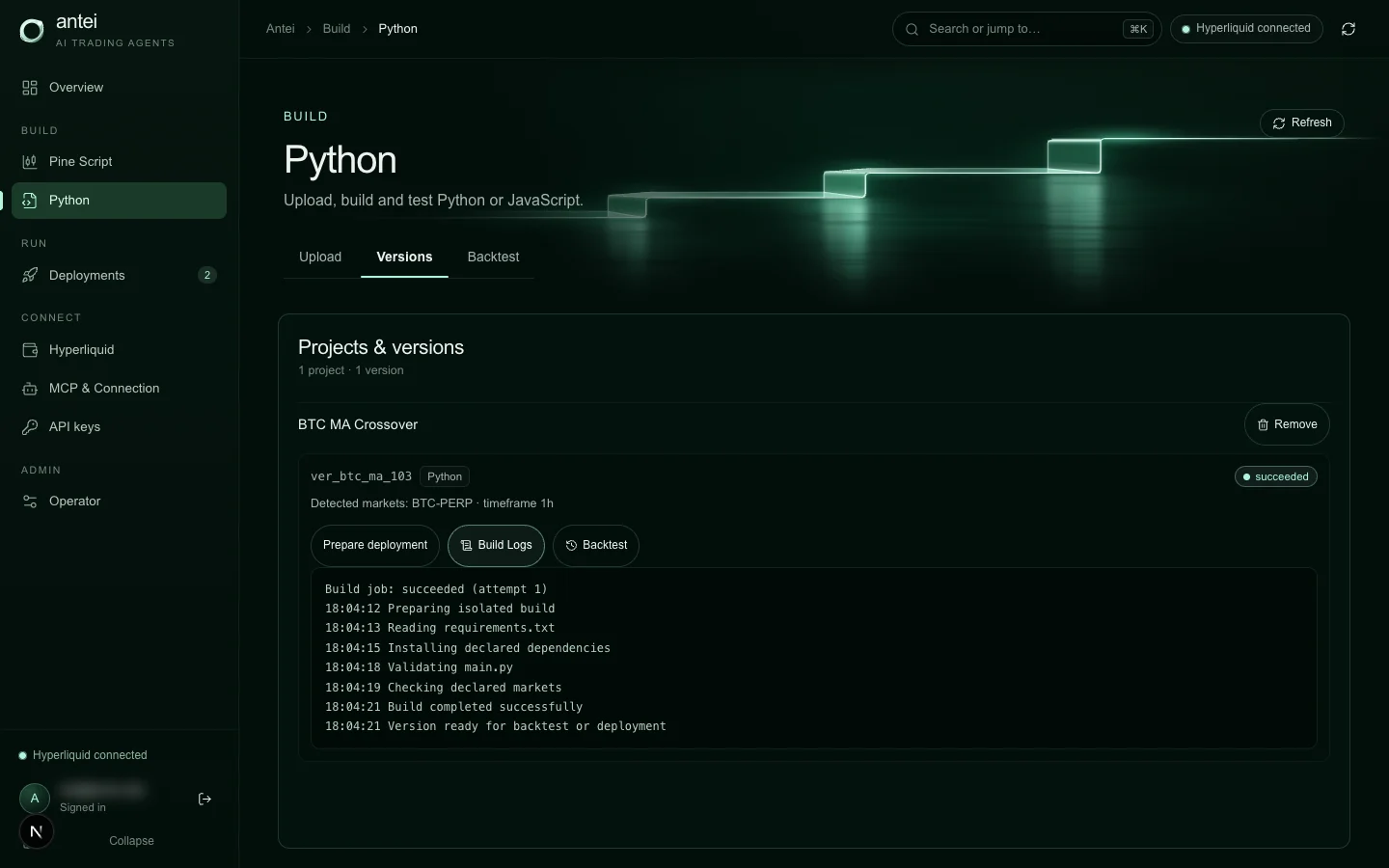
Build status and logs are visible in the real Antei console; the assistant can inspect the same version through scoped tools.
Backtests run without internet access, which keeps historical testing from reaching a live service. Strategies that depend on external APIs may need a different validation plan.
Step 5: Test, then start in paper mode
Ask the assistant to explain the test assumptions, not merely repeat a headline metric. After historical testing, deploy the exact version to paper trading. Paper mode simulates fills against live Hyperliquid prices and cannot submit real orders.
Use the assistant to check:
data freshness and warm-up;
whether signals fire;
order size and minimum-notional skips;
simulated fills, positions and fees;
repeated warnings or unexplained inactivity.
Step 6: Read logs instead of maintaining process infrastructure
Managed operation does not mean invisible operation. Runtime logs show what the strategy did and why. They are the place to distinguish a healthy heartbeat from a processed signal, a skipped order or a simulated fill.
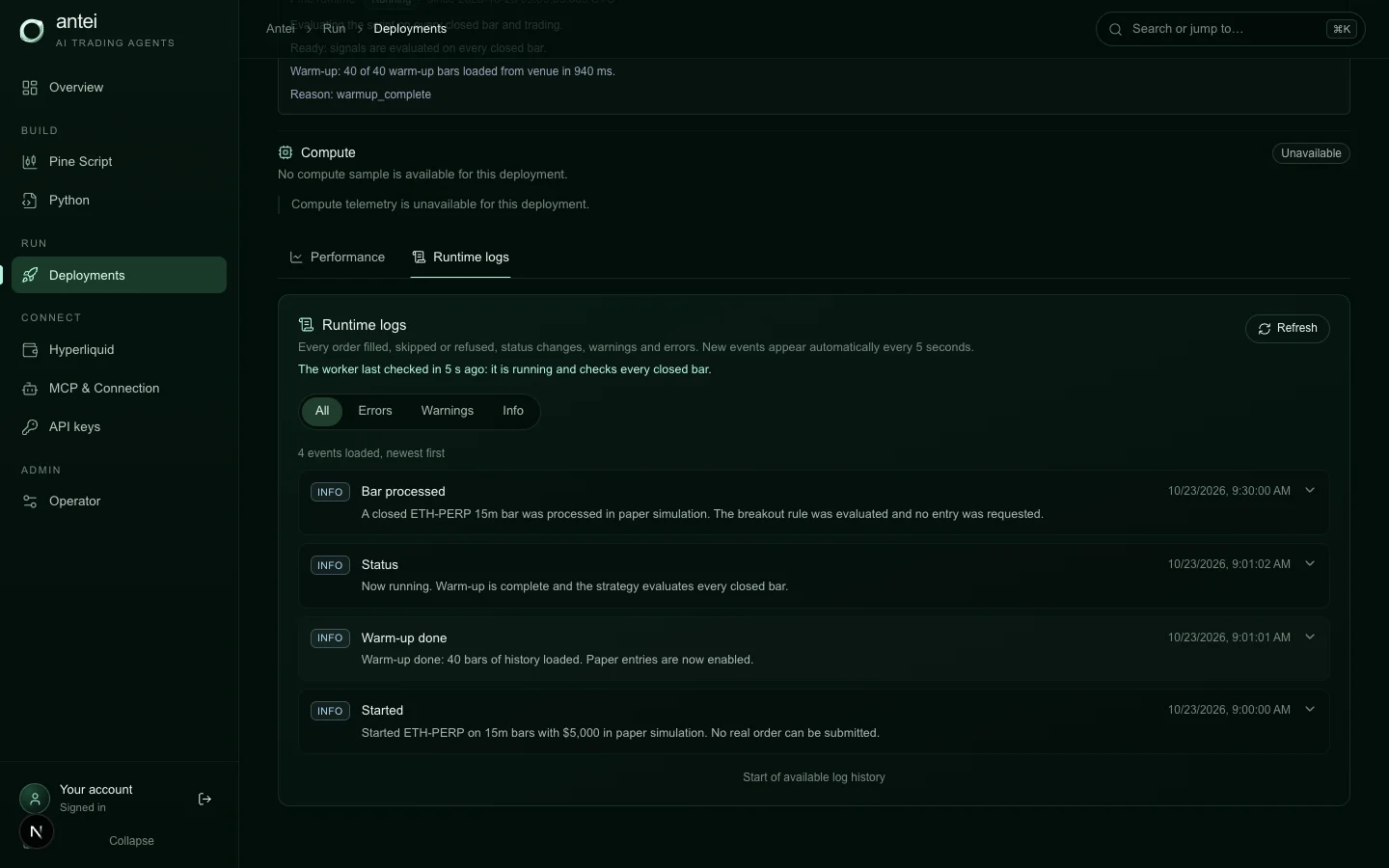
The runtime log provides an inspectable history without SSH, process managers or a self-hosted log stack.
Step 7: Add live permission only at the live boundary
Live trading requires a separate scope and a verified Hyperliquid connection. Antei uses an API wallet that can trade but cannot withdraw. Never provide a main-wallet private key or seed phrase.
Before deployment, review the exact version, market, capital and risk limits. The fact that an AI prepared the configuration does not remove the need for human approval.
What Antei manages—and what you still own
Antei manages strategy hosting, runtime isolation, supported market data, order routing, logs and deployment controls. You still own strategy logic, permission choices, wallet authorization, risk limits and the decision to go live.
Managed infrastructure removes server chores. It does not remove model risk, strategy risk, exchange risk or the need to monitor.
Frequently Asked Questions
Do I need a VPS for an Antei AI trading bot?
No. Antei runs supported Pine Script, Python and Node.js strategies on managed infrastructure.
Can an AI assistant place real orders automatically?
Only after the connection has the required scope, the account passes live readiness and the state-changing tool receives the required user interaction. Start read-only and paper-first.
Does the AI assistant receive my main wallet key?
It should not. Antei supports an authorized Hyperliquid API wallet and refuses main-wallet credentials. Never share a seed phrase.
Can I revoke access?
Yes. MCP connections expose their effective scopes and can be revoked; API wallets can be replaced or revoked separately.
Final Answer
To start AI-assisted Hyperliquid trading without managing a server, connect the assistant through Antei AI’s MCP endpoint, authorize only the scopes needed, build a fixed strategy version, validate it in backtest and paper mode, then approve live deployment only after wallet and risk checks pass.