How to Connect Codex to Antei AI and Deploy a Hyperliquid Strategy from Chat
Connect Codex to Antei through MCP, inspect available tools, create a strategy version, and prepare a reviewed Hyperliquid paper deployment from chat.
On this page
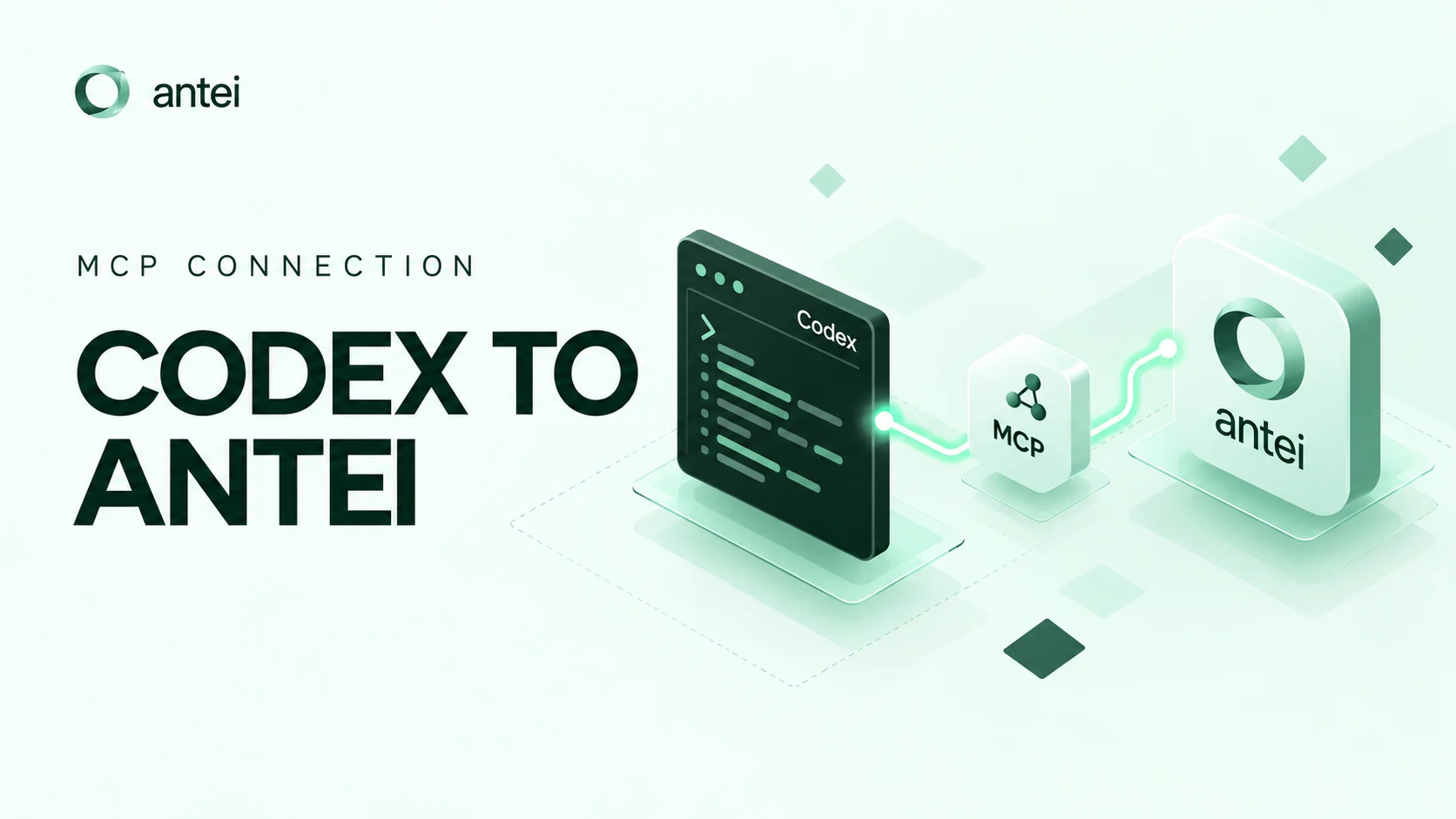
Antei AI’s MCP connection lets you work with the strategy engine from a compatible AI client such as Codex. The important idea is that the chat is an interface to Antei’s tools—not a place to paste exchange secrets or bypass deployment controls.
Key takeaway
Connect the Antei MCP endpoint, complete Antei sign-in, and ask Codex to inspect available tools before making changes. Create the strategy and paper deployment first; only move toward live execution after reviewing the version and settings in the Antei console.
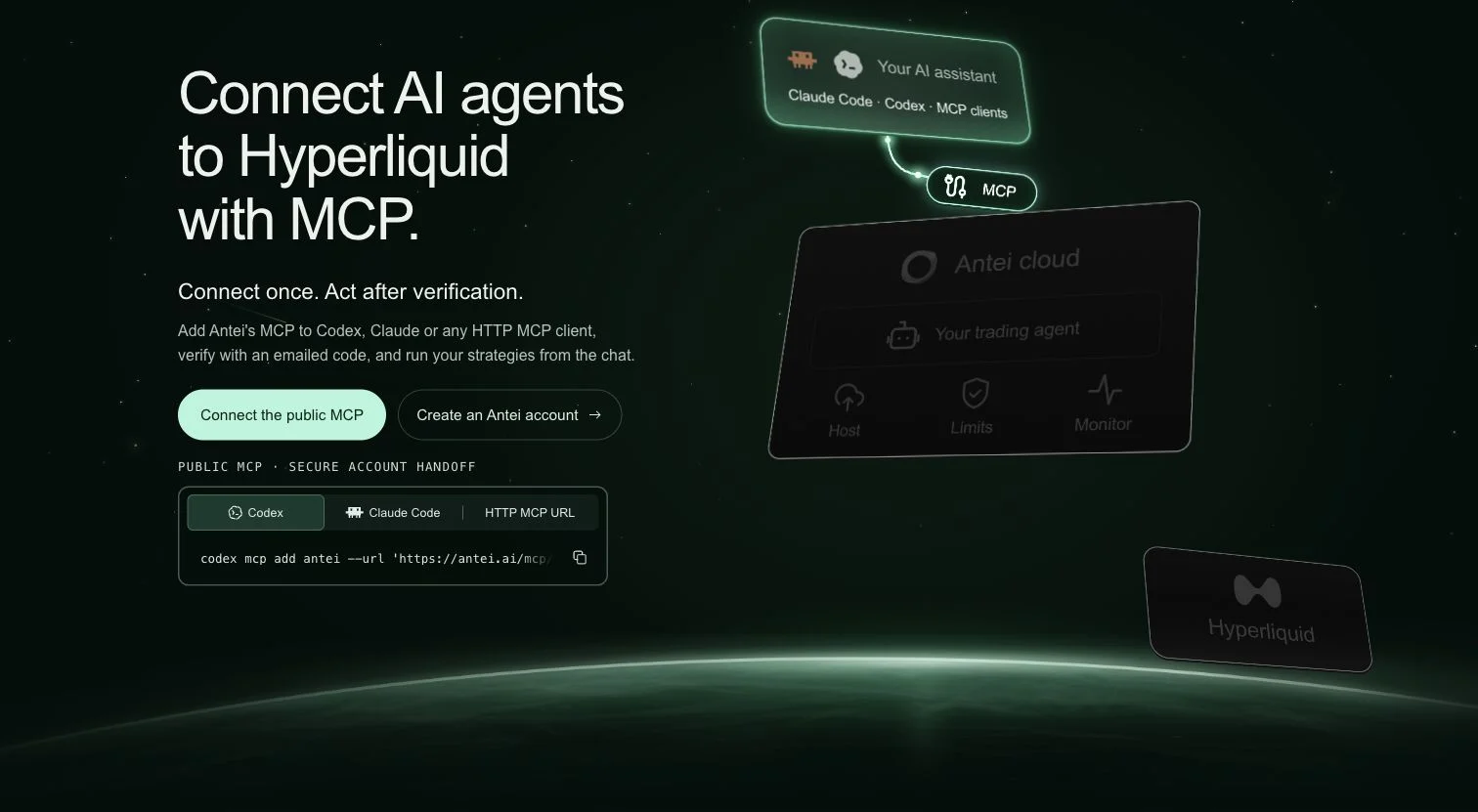
The Antei MCP page provides the connection address and setup flow for supported AI clients.
Step 1: Open the exact Codex setup in Antei
In the Antei Console, open MCP & Connection from the left sidebar. Stay on Client setup, select Codex, and use Copy setup. The same screen also shows the public MCP address:
https://antei.ai/mcp/connect
If you are configuring Codex from a terminal, the command shown by Antei is:
codex mcp add antei --url 'https://antei.ai/mcp/connect'
Adding the server does not sign you in. It only makes Antei’s tools available to Codex.
Step 2: Complete sign-in inside the same chat
Paste Antei’s setup message into Codex and ask it to start with get_onboarding_status. Codex asks for the email, name, and requested access, then calls sign_in_with_email. Enter the six-digit code Antei emails you so Codex can call verify_email_code.
The connection is complete only after Antei verifies that code. In the Console, open MCP & Connection → Connections to confirm the client appears there.
Never send an Antei password, access token, main-wallet private key, or seed phrase in chat. If you later connect Hyperliquid, use only the dedicated API-wallet credential requested by the protected Antei flow.
Step 3: Ask Codex to inspect before changing anything
Start with a read-only request, for example:
Show the Antei strategies and deployments available to this account. Do not create, start, pause, or stop anything.
This confirms that the connection is working and helps you learn the exact names and states of existing resources. It also reduces the risk of creating duplicates.
Antei’s MCP workflow keeps strategy creation, connection, and deployment inside one controlled journey.
Step 4: Create or import a strategy
Give Codex a precise brief. State the language, market logic, timeframe, and the intended first environment. A useful prompt is:
Create a Pine Script strategy version for Antei that evaluates its signal only on closed 15-minute bars. Prepare it for paper trading on one Hyperliquid market. Do not start a live deployment.
Review the returned summary and any validation warnings. If Codex proposes a change to the trading logic, ask it to explain the change in plain language before saving a new version.
Step 5: Configure the paper deployment
Specify the settings explicitly:
Hyperliquid market;
timeframe;
warm-up history;
order-size rule;
platform risk limits;
paper mode.
Avoid vague prompts such as “deploy this safely.” Safe for one account may be unsuitable for another. Concrete settings create an auditable deployment plan.
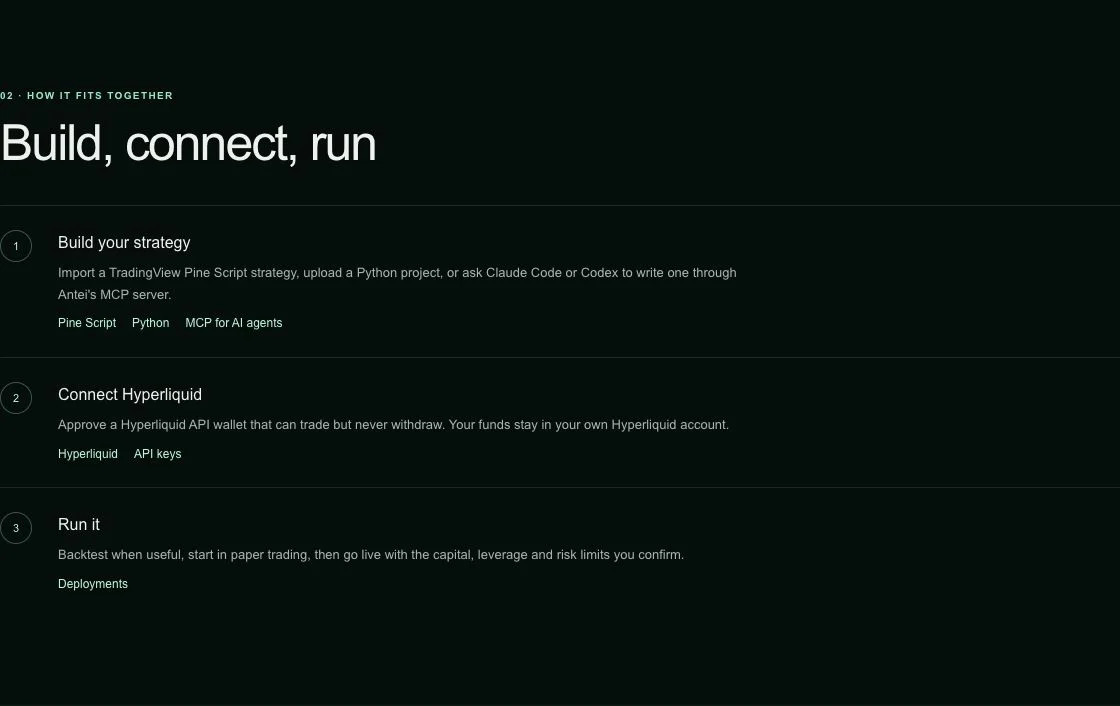
The product flow separates building the strategy, connecting Hyperliquid, and running the deployment.
Step 6: Review in the Antei console
Before starting anything, open the strategy and deployment in Antei. Confirm that the selected version, market, timeframe, sizing, and mode match your request. Review warnings and make sure the deployment says paper rather than live.
After it starts, inspect the runtime logs. The logs should show what the strategy attempted, what the platform accepted or refused, and why. If behavior differs from the strategy brief, pause the deployment and investigate before creating another version.
Step 7: Make changes through versions
Do not silently overwrite a running strategy. Ask Codex to create a new immutable version, explain the difference, and leave the current deployment unchanged until you approve the replacement.
A good update prompt is:
Create a new version that changes only the exit condition. Summarize the behavioral difference. Do not switch or restart any deployment.
This keeps code changes separate from operational actions.
Frequently asked questions
Can Codex start a live deployment automatically?
Some operational tools may require explicit user approval. Even when available, review the version and settings in Antei before authorizing a real-money action.
Should I paste my Hyperliquid private key into Codex?
No. Connect and verify the API wallet through Antei’s designated flow. Secrets should never be placed in prompts.
What if the connection shows no strategies?
Confirm that you authenticated the intended Antei account. Then ask Codex to list available Antei tools and retry the read-only request.
Final answer
Use Codex as a structured interface to Antei: connect through MCP, inspect first, create a version, configure a paper deployment, and verify the result in the console. Keep credentials out of chat and keep live actions behind explicit review.
Risk notice: Trading involves risk. Paper results are simulated and do not guarantee live results.